Currently Empty: ₹0.00




Tally ERP 9 Shortcut Keys – Complete Practical Guide
Tally ERP 9 shortcut keys help you work faster while managing accounts, vouchers, ledgers, inventory, reports, company data, and financial transactions. Instead of using the mouse for every task, you can use keyboard shortcuts to open screens, select vouchers, enter transactions, navigate reports, and perform accounting operations quickly.
This Tally ERP 9 Shortcut Keys guide is useful for accounting students, Tally learners, office workers, accountants, computer operators, and business owners.
Basic Tally ERP 9 Shortcut Keys
| Shortcut Key | Function | Simple Explanation |
|---|---|---|
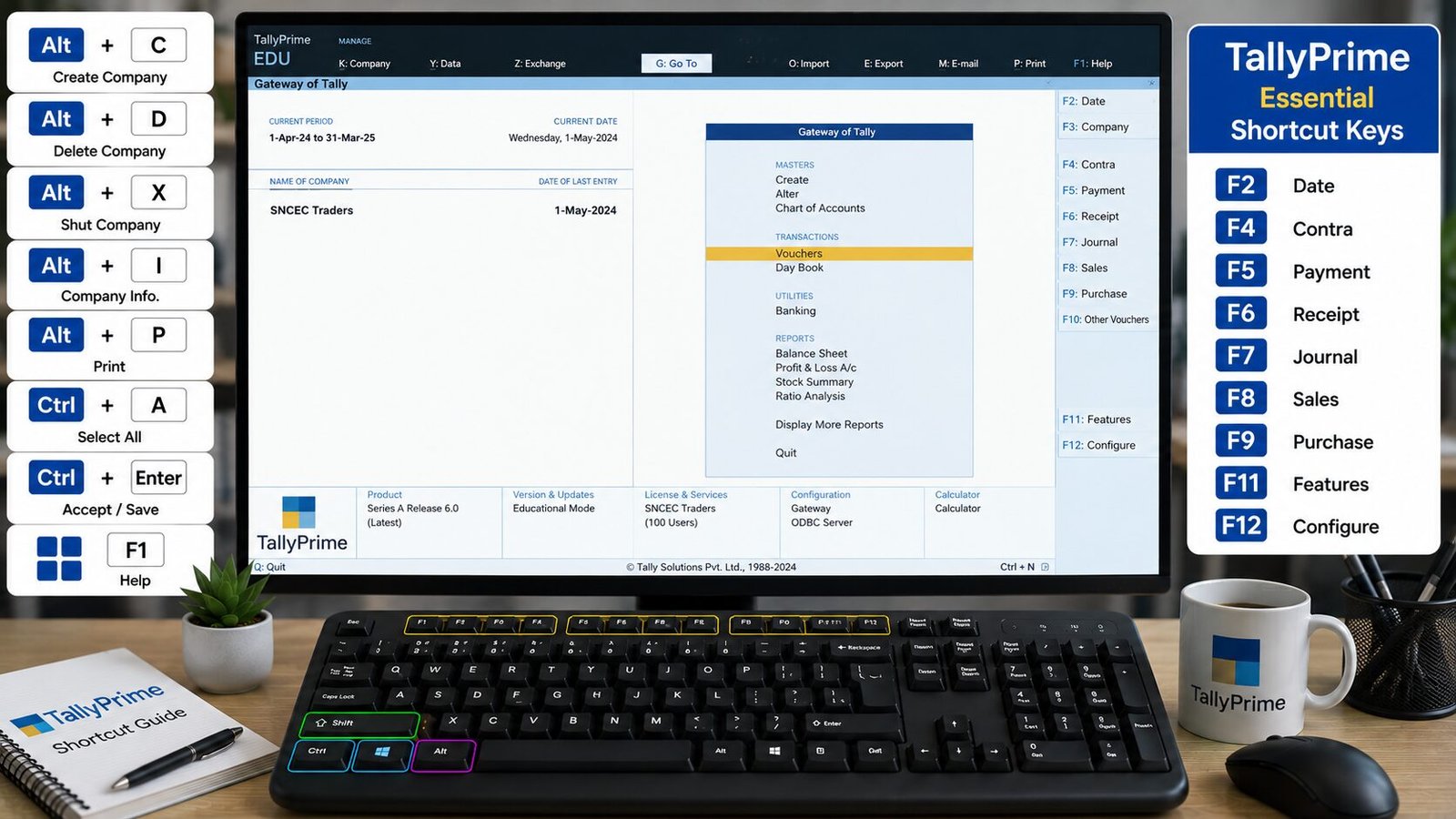
| F1 | Select Company | Opens the company selection screen. |
| F2 | Date | Changes the voucher or working date. |
| F3 | Company | Opens company-related options. |
| F4 | Contra Voucher | Opens the Contra voucher screen. |
| F5 | Payment Voucher | Opens the Payment voucher screen. |
| F6 | Receipt Voucher | Opens the Receipt voucher screen. |
| F7 | Journal Voucher | Opens the Journal voucher screen. |
| F8 | Sales Voucher | Opens the Sales voucher screen. |
| F9 | Purchase Voucher | Opens the Purchase voucher screen. |
| F10 | Reversing Journal/Memorandum | Opens the applicable voucher option depending on the screen. |
| F11 | Company Features | Opens company feature settings. |
| F12 | Configuration | Opens configuration options for the current screen. |
Voucher Shortcut Keys
Tally ERP 9 uses function keys extensively for voucher entry.
| Shortcut Key | Voucher | Simple Explanation |
|---|---|---|
| F4 | Contra | Used for cash/bank transfer transactions. |
| F5 | Payment | Used for payments made by the business. |
| F6 | Receipt | Used for money received by the business. |
| F7 | Journal | Used for adjustment and accounting entries. |
| F8 | Sales | Used to record sales transactions. |
| F9 | Purchase | Used to record purchase transactions. |
| Alt + F8 | Delivery Note | Opens Delivery Note where supported. |
| Alt + F9 | Receipt Note | Opens Receipt Note where supported. |
| Alt + F7 | Stock Journal | Opens Stock Journal. |
| Ctrl + F8 | Sales Order | Opens Sales Order where supported. |
| Ctrl + F9 | Purchase Order | Opens Purchase Order where supported. |
Accounting Voucher Shortcuts
| Shortcut Key | Function | Simple Explanation |
|---|---|---|
| F4 | Contra | Records transactions between cash and bank accounts. |
| F5 | Payment | Records payments. |
| F6 | Receipt | Records receipts. |
| F7 | Journal | Records adjustment entries. |
| F8 | Sales | Records sales. |
| F9 | Purchase | Records purchases. |
Tally ERP 9 Navigation Shortcuts
| Shortcut Key | Function | Simple Explanation |
|---|---|---|
| Esc | Back/Exit | Goes back to the previous screen or closes the current window. |
| Ctrl + A | Accept | Accepts or saves the current screen/form in many Tally contexts. |
| Enter | Select/Accept | Selects an option or moves to the next field. |
| Alt + C | Create | Creates a new ledger/master while entering a transaction. |
| Alt + D | Delete | Deletes the selected entry/master where permitted. |
| Alt + X | Cancel | Cancels a voucher or selected operation where supported. |
| Alt + I | Insert | Inserts a voucher/item in supported screens. |
| Alt + 2 | Duplicate | Duplicates a voucher in supported contexts. |
Company Management Shortcut Keys
| Shortcut Key | Function | Simple Explanation |
|---|---|---|
| Alt + F1 | Shut Company | Closes the selected company. |
| Alt + F2 | Change Period | Changes the financial/reporting period. |
| Alt + F3 | Company Info | Opens Company Information options. |
| F1 | Select Company | Selects or opens a company. |
| Ctrl + F3 | Shut Company | Closes the current company in supported contexts. |
| Alt + K | Keyboard/Control Options | Accesses applicable keyboard-driven commands depending on the screen. |
Ledger and Master Creation Shortcuts
One of the most useful Tally ERP 9 features is the ability to create masters without leaving voucher entry.
| Shortcut Key | Function | Simple Explanation |
|---|---|---|
| Alt + C | Create Ledger | Creates a new ledger while entering a voucher. |
| Alt + C | Create Master | Creates a required master from an applicable field. |
| Ctrl + Enter | Alter Master | Opens the selected master for alteration where supported. |
| Alt + D | Delete Master | Deletes a selected master where deletion is permitted. |
Practical Example: While entering a Sales voucher, if a required customer ledger does not exist, press Alt + C to create it without leaving the voucher screen.
Inventory Shortcut Keys
| Shortcut Key | Function | Simple Explanation |
|---|---|---|
| Alt + F7 | Stock Journal | Records stock movement or adjustment. |
| Alt + F8 | Delivery Note | Records goods delivered to a customer. |
| Alt + F9 | Receipt Note | Records goods received from a supplier. |
| Ctrl + F8 | Sales Order | Records a customer sales order. |
| Ctrl + F9 | Purchase Order | Records an order placed with a supplier. |
Reports Shortcut Keys
| Shortcut Key | Function | Simple Explanation |
|---|---|---|
| Alt + F1 | Detailed View | Expands the report into a detailed view where supported. |
| Alt + F2 | Change Period | Changes the reporting period. |
| Alt + F5 | Detailed Report | Displays more detailed information where supported. |
| F12 | Configuration | Changes report display/configuration settings. |
| Enter | Drill Down | Opens detailed information from a report. |
| Esc | Back | Returns to the previous screen. |
Tally ERP 9 Date and Period Shortcuts
| Shortcut Key | Function | Simple Explanation |
|---|---|---|
| F2 | Change Date | Changes the voucher date. |
| Alt + F2 | Change Period | Changes the report or financial period. |
Example: If you need to enter a transaction for a different date, press F2 and enter the required date.
Printing Shortcut Keys
| Shortcut Key | Function | Simple Explanation |
|---|---|---|
| Alt + P | Opens printing options. | |
| Ctrl + P | Prints the current report/voucher where supported. | |
| Alt + F1 | Detailed View | Expands information before printing where supported. |
Export Shortcut
| Shortcut Key | Function | Simple Explanation |
|---|---|---|
| Alt + E | Export | Opens export options for reports where supported. |
Tally reports can be exported into formats such as Excel, PDF, XML, or other supported formats, depending on the Tally ERP 9 version and configuration.
E-Mail Shortcut
| Shortcut Key | Function | Simple Explanation |
|---|---|---|
| Alt + M | Opens the e-mail option for supported reports. |
Calculator in Tally
Tally includes a built-in calculator area that is useful while entering accounts.
| Shortcut Key | Function | Simple Explanation |
|---|---|---|
| Ctrl + N | Calculator Panel | Opens the calculator panel in supported Tally screens. |
| Ctrl + M | Calculator/Working Area | Switches between calculator and main working areas in applicable contexts. |
Practical Tip: The calculator can be useful when you need to calculate amounts without leaving the voucher-entry screen.
Tally ERP 9 Voucher Editing Shortcuts
| Shortcut Key | Function | Simple Explanation |
|---|---|---|
| Ctrl + A | Accept | Accepts the voucher or current screen. |
| Alt + 2 | Duplicate Voucher | Creates a copy of an existing voucher where supported. |
| Alt + I | Insert Voucher | Inserts a voucher in applicable reports. |
| Alt + X | Cancel Voucher | Cancels the selected voucher where supported. |
| Alt + D | Delete | Deletes the selected voucher/master where permitted. |
Tally ERP 9 Data Entry Shortcuts
| Shortcut Key | Function | Simple Explanation |
|---|---|---|
| Enter | Accept/Next | Accepts the current field and moves forward. |
| Tab | Next Field | Moves to the next available field. |
| Shift + Tab | Previous Field | Moves back to the previous field where supported. |
| Alt + C | Create Ledger | Creates a ledger without leaving the transaction screen. |
| Ctrl + A | Accept | Accepts the completed entry. |
| Esc | Exit | Returns to the previous screen. |
Tally ERP 9 Accounting Practical Example
Suppose you want to record a cash payment of ₹5,000 for office expenses.
- Open the required company.
- Press F5 to open the Payment Voucher.
- Press F2 if you need to change the voucher date.
- Select the required expense ledger.
- Enter ₹5,000.
- Select the cash/bank ledger.
- Enter the narration if required.
- Press Ctrl + A to accept the voucher.
- The payment transaction is now recorded.
Practical Sales Entry Example
Suppose you want to record a credit sale.
- Press F8 to open the Sales voucher.
- Select the customer ledger.
- Select the required stock item.
- Enter quantity and rate.
- Check the calculated amount.
- Add taxes if applicable.
- Enter narration if required.
- Press Ctrl + A to accept the voucher.
Practical Purchase Entry Example
To record a purchase:
- Press F9 to open the Purchase voucher.
- Select the supplier ledger.
- Select the purchase item.
- Enter quantity and rate.
- Enter applicable tax details.
- Check the total amount.
- Enter narration.
- Press Ctrl + A to save the transaction.
Most Important Tally ERP 9 Shortcut Keys to Learn First
F1 – Select Company
F2 – Change Date
F3 – Company Options
F4 – Contra Voucher
F5 – Payment Voucher
F6 – Receipt Voucher
F7 – Journal Voucher
F8 – Sales Voucher
F9 – Purchase Voucher
F10 – Reversing Journal/Memorandum
F11 – Company Features
F12 – Configuration
Alt + F1 – Detailed View / Shut Company depending on screen
Alt + F2 – Change Period
Alt + F3 – Company Information
Alt + F7 – Stock Journal
Alt + F8 – Delivery Note
Alt + F9 – Receipt Note
Ctrl + F8 – Sales Order
Ctrl + F9 – Purchase Order
Alt + C – Create Ledger/Master
Alt + D – Delete
Alt + I – Insert
Alt + X – Cancel Voucher
Alt + 2 – Duplicate Voucher
Alt + P – Print
Alt + E – Export
Alt + M – E-mail
Ctrl + A – Accept
Esc – Back/Exit
Enter – Select/Accept
Ctrl + F3 – Shut Company in supported contexts
Practical Learning Tip
If you are learning Tally ERP 9 as part of a computer or accounting course, practice these shortcuts while creating real accounting projects such as company creation, ledger creation, cash transactions, bank transactions, purchase entries, sales entries, payment vouchers, receipt vouchers, journal entries, stock management, GST-related entries, Trial Balance, Profit & Loss Account, Balance Sheet, and Day Book.
For beginners, first learn F2, F4, F5, F6, F7, F8, F9, F11, F12, Alt + C, Ctrl + A, Alt + F2, Alt + F7, Alt + F8, Alt + F9, Ctrl + F8, and Ctrl + F9.
SNCEC PORTAL
Student & Website Links
Quick access to student services, courses, learning resources and SNCEC information.
Student Login
Access your student account
Student Registration
Create your student account
Student Dashboard
Manage your learning activities
Courses
Explore our job-oriented courses
All Courses List
View complete course catalog
Mock Tests & Quizzes
Practice and test your knowledge
Student Zone
Access student services and resources
Student Zone →Learning Portal
Access online learning resources
Open Portal →Knowledge Base
Access computer learning notes and knowledge resources
Open Knowledge Base →SNCEC Digital Seva
Access digital services and online assistance
Open Digital Seva →Instructor Registration
Join us as an instructor
Our Team
Meet our professional team
About Us
Learn more about SNCEC
Contact Us
Get in touch with our team
Computer Shop
Computers, accessories & IT products
SNCEC Official Website
Shree Narayan Computers & Education Center