Currently Empty: ₹0.00




Microsoft Windows 10 Shortcut Keys – Complete Practical Guide
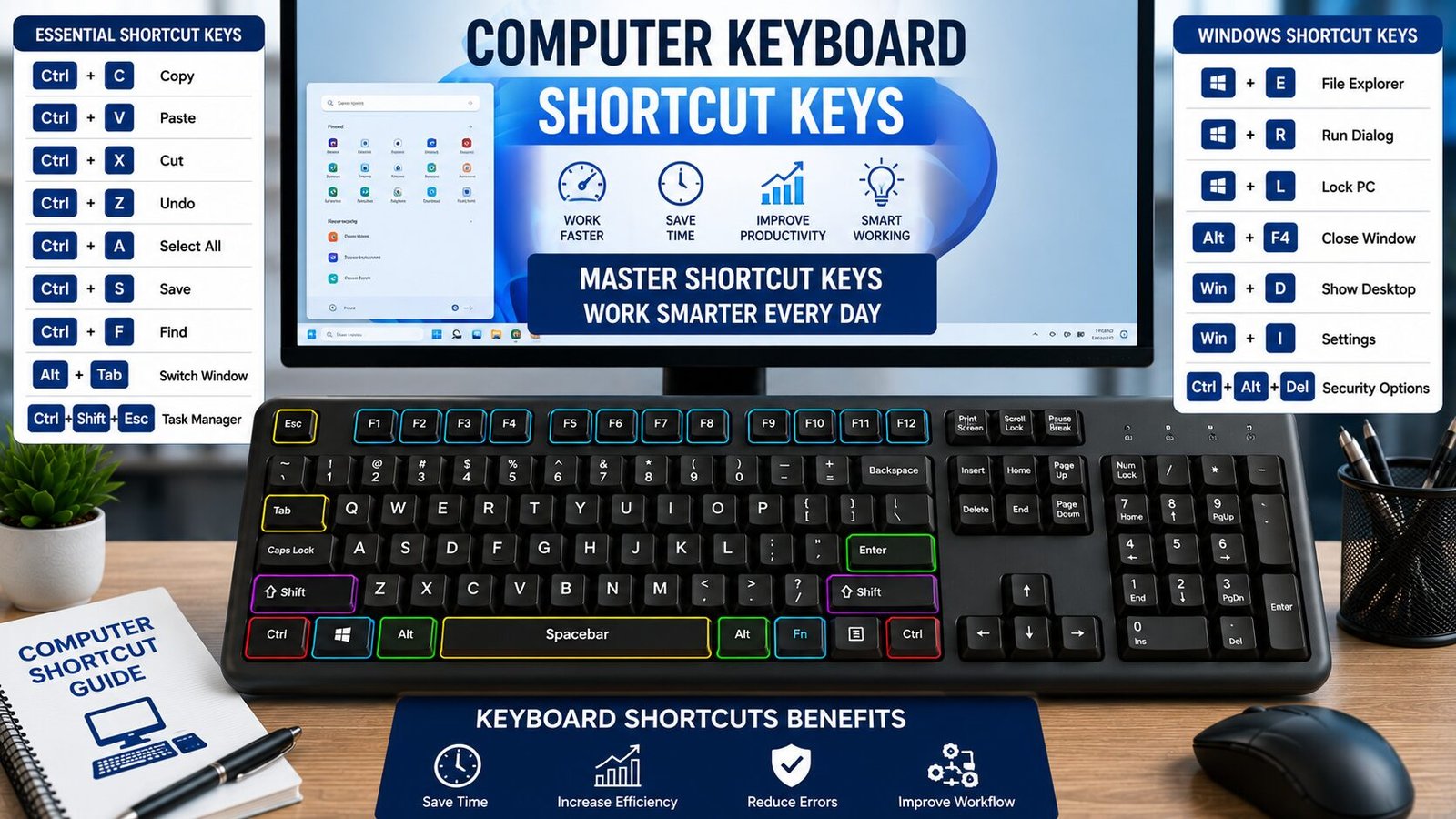
Microsoft Windows 10 shortcut keys help you perform everyday computer tasks faster. You can use them to open applications, manage files and folders, switch between windows, take screenshots, search your computer, manage virtual desktops, open system tools, and control Windows settings.
This Windows 10 Shortcut Keys guide is useful for students, office workers, computer operators, beginners, and anyone learning basic computer skills.
Basic Windows 10 Shortcut Keys
| Shortcut Key | Function | Simple Explanation |
|---|---|---|
| Windows | Start Menu | Opens the Start menu. |
| Windows + D | Show Desktop | Shows or hides the desktop. |
| Windows + E | File Explorer | Opens File Explorer. |
| Windows + I | Settings | Opens Windows Settings. |
| Windows + S | Search | Opens Windows Search. |
| Windows + A | Action Center | Opens the Action Center. |
| Windows + L | Lock PC | Locks the computer. |
| Windows + R | Run | Opens the Run dialog box. |
| Windows + X | Quick Link Menu | Opens the advanced user menu. |
| Windows + P | Project | Opens display/project options. |
| Windows + U | Ease of Access | Opens accessibility settings. |
| Windows + V | Clipboard History | Opens Clipboard History when enabled. |
| Windows + G | Game Bar | Opens Xbox Game Bar. |
| Windows + K | Connect | Opens the Connect panel for wireless displays/devices where supported. |
File and Folder Shortcut Keys
| Shortcut Key | Function | Simple Explanation |
|---|---|---|
| Ctrl + N | New Window | Opens a new window in supported applications and File Explorer contexts. |
| Ctrl + Shift + N | New Folder | Creates a new folder. |
| Ctrl + C | Copy | Copies the selected file or folder. |
| Ctrl + X | Cut | Cuts the selected file or folder. |
| Ctrl + V | Paste | Pastes copied or cut items. |
| Ctrl + A | Select All | Selects all items. |
| Ctrl + Z | Undo | Reverses the previous action. |
| Ctrl + Y | Redo | Repeats or restores an undone action. |
| Delete | Delete | Moves the selected item to the Recycle Bin. |
| Shift + Delete | Permanent Delete | Deletes the selected item without sending it to the Recycle Bin. |
| F2 | Rename | Renames the selected file or folder. |
| Alt + Enter | Properties | Opens the Properties window. |
File Explorer Shortcut Keys
| Shortcut Key | Function | Simple Explanation |
|---|---|---|
| Windows + E | Open File Explorer | Opens File Explorer. |
| Alt + D | Address Bar | Selects the address bar. |
| Ctrl + L | Address Bar | Selects the current folder path. |
| Ctrl + F | Search | Activates the search box. |
| Ctrl + Shift + N | New Folder | Creates a new folder. |
| Alt + Left Arrow | Back | Goes to the previous folder/location. |
| Alt + Right Arrow | Forward | Goes to the next location. |
| Alt + Up Arrow | Parent Folder | Goes up one folder level. |
| F5 | Refresh | Refreshes the current folder. |
| Ctrl + Mouse Wheel | Change View | Changes the size of icons in File Explorer. |
Window Management Shortcut Keys
| Shortcut Key | Function | Simple Explanation |
|---|---|---|
| Alt + Tab | Switch Apps | Switches between open applications. |
| Alt + F4 | Close Window | Closes the active window. |
| Windows + Tab | Task View | Shows open windows and virtual desktops. |
| Windows + D | Show Desktop | Shows or hides the desktop. |
| Windows + M | Minimize All | Minimizes all open windows. |
| Windows + Shift + M | Restore Windows | Restores minimized windows. |
| Windows + Home | Minimize Others | Minimizes all windows except the active window. |
| Windows + Up Arrow | Maximize | Maximizes the active window. |
| Windows + Down Arrow | Minimize/Restore | Minimizes or restores the active window. |
| Windows + Left Arrow | Snap Left | Places the window on the left side of the screen. |
| Windows + Right Arrow | Snap Right | Places the window on the right side of the screen. |
Snap Windows in Windows 10
Windows 10 allows you to work with multiple windows at the same time.
| Shortcut Key | Function | Simple Explanation |
|---|---|---|
| Windows + Left Arrow | Snap Left | Places the current window on the left half. |
| Windows + Right Arrow | Snap Right | Places the current window on the right half. |
| Windows + Up Arrow | Maximize | Maximizes the current window. |
| Windows + Down Arrow | Minimize/Restore | Restores or minimizes the current window. |
Practical Example: Open Microsoft Word and Microsoft Excel. Snap Word to the left and Excel to the right so you can work with both programs together.
Virtual Desktop Shortcut Keys
Windows 10 supports multiple virtual desktops.
| Shortcut Key | Function | Simple Explanation |
|---|---|---|
| Windows + Tab | Task View | Opens Task View. |
| Windows + Ctrl + D | New Desktop | Creates a new virtual desktop. |
| Windows + Ctrl + Left Arrow | Previous Desktop | Moves to the desktop on the left. |
| Windows + Ctrl + Right Arrow | Next Desktop | Moves to the desktop on the right. |
| Windows + Ctrl + F4 | Close Desktop | Closes the current virtual desktop. |
Virtual desktops are useful when you want to keep study work, office work, browsing, and other tasks separate.
Screenshot Shortcut Keys
| Shortcut Key | Function | Simple Explanation |
|---|---|---|
| PrtScn | Screenshot | Copies the entire screen to the Clipboard. |
| Alt + PrtScn | Active Window Screenshot | Copies only the active window to the Clipboard. |
| Windows + PrtScn | Save Screenshot | Captures the entire screen and saves it automatically. |
| Windows + Shift + S | Snip Screen | Lets you select an area of the screen to capture. |
| Windows + G | Game Bar | Opens Xbox Game Bar for screen capture and other functions. |
Search and Run Shortcut Keys
| Shortcut Key | Function | Simple Explanation |
|---|---|---|
| Windows + S | Search | Searches apps, files, settings, and other content. |
| Windows + R | Run | Opens the Run dialog box. |
| Windows + X | Quick Link Menu | Opens advanced system tools. |
Useful Windows 10 Run Commands
Press Windows + R, type the command, and press Enter.
| Run Command | Function | Simple Explanation |
|---|---|---|
| notepad | Notepad | Opens Notepad. |
| calc | Calculator | Opens Calculator. |
| mspaint | Paint | Opens Microsoft Paint. |
| cmd | Command Prompt | Opens Command Prompt. |
| control | Control Panel | Opens Control Panel. |
| taskmgr | Task Manager | Opens Task Manager. |
| explorer | File Explorer | Opens File Explorer. |
| msconfig | System Configuration | Opens System Configuration. |
| services.msc | Services | Opens the Windows Services manager. |
| devmgmt.msc | Device Manager | Opens Device Manager. |
| appwiz.cpl | Programs and Features | Opens installed-program management. |
| diskmgmt.msc | Disk Management | Opens disk management tools. |
Clipboard Shortcut Keys
| Shortcut Key | Function | Simple Explanation |
|---|---|---|
| Ctrl + C | Copy | Copies selected content. |
| Ctrl + X | Cut | Cuts selected content. |
| Ctrl + V | Paste | Pastes copied content. |
| Windows + V | Clipboard History | Shows previously copied items when Clipboard History is enabled. |
Practical Tip: Clipboard History is very useful when you need to copy several pieces of information and paste them one by one.
Windows Security Shortcut Keys
| Shortcut Key | Function | Simple Explanation |
|---|---|---|
| Ctrl + Alt + Delete | Security Screen | Opens Windows security options. |
| Ctrl + Shift + Esc | Task Manager | Opens Task Manager directly. |
| Windows + L | Lock PC | Locks the computer. |
| Windows + R | Run | Opens the Run dialog box. |
| Windows + X | Quick Link Menu | Opens advanced Windows tools. |
Task Manager Shortcut
Ctrl + Shift + Esc directly opens Task Manager.
Task Manager can help you:
- Check running applications
- Close an unresponsive program
- Monitor CPU usage
- Monitor memory usage
- Check disk and network usage
- Manage startup applications
- View system performance
Accessibility Shortcut Keys
| Shortcut Key | Function | Simple Explanation |
|---|---|---|
| Windows + U | Ease of Access | Opens accessibility settings. |
| Windows + Plus (+) | Magnifier | Opens or increases Magnifier. |
| Windows + Minus (-) | Zoom Out | Decreases Magnifier zoom. |
| Windows + Esc | Close Magnifier | Closes Magnifier. |
| Windows + Ctrl + Enter | Narrator | Turns Narrator on or off. |
| Left Alt + Left Shift + Print Screen | High Contrast | Turns high contrast on or off where supported. |
| Shift five times | Sticky Keys | Opens Sticky Keys options. |
Windows 10 Settings Shortcut Keys
| Shortcut Key | Function | Simple Explanation |
|---|---|---|
| Windows + I | Settings | Opens the Settings application. |
| Windows + A | Action Center | Opens quick actions and notifications. |
| Windows + P | Project | Opens display projection options. |
| Windows + U | Accessibility | Opens Ease of Access settings. |
| Windows + K | Connect | Opens wireless connection options where supported. |
Text Editing Shortcut Keys
These shortcuts work in many Windows applications.
| Shortcut Key | Function | Simple Explanation |
|---|---|---|
| Ctrl + A | Select All | Selects all text/content. |
| Ctrl + C | Copy | Copies selected text. |
| Ctrl + X | Cut | Cuts selected text. |
| Ctrl + V | Paste | Pastes copied text. |
| Ctrl + Z | Undo | Reverses the last action. |
| Ctrl + Y | Redo | Repeats the previous action. |
| Ctrl + F | Find | Searches for text. |
| Home | Line Start | Moves to the beginning of a line. |
| End | Line End | Moves to the end of a line. |
| Ctrl + Home | Beginning | Moves to the beginning of a document. |
| Ctrl + End | End | Moves to the end of a document. |
Command Prompt and Windows Tools
| Shortcut Key | Function | Simple Explanation |
|---|---|---|
| Windows + R | Run | Opens Run. |
| Windows + X | Quick Link Menu | Opens advanced Windows tools. |
| Ctrl + Shift + Esc | Task Manager | Opens Task Manager. |
| Ctrl + Shift + Enter | Run as Administrator | Runs a compatible selected application with administrator privileges. |
Power and Lock Shortcuts
| Shortcut Key | Function | Simple Explanation |
|---|---|---|
| Windows + L | Lock | Locks the computer. |
| Ctrl + Alt + Delete | Security Options | Opens security options. |
| Alt + F4 | Shutdown Dialog | When the desktop is active, opens the Windows shutdown dialog. |
| Windows + X | Power User Menu | Provides access to power and system tools. |
Practical Windows 10 Example
Suppose you are doing a computer practical assignment.
- Press Windows + E to open File Explorer.
- Press Ctrl + Shift + N to create a new folder.
- Type the folder name and press Enter.
- Press Windows + S and search for Microsoft Word.
- Open Word and create your assignment.
- Press Alt + Tab to switch between Word and File Explorer.
- Press Windows + Shift + S to take a screenshot.
- Press Windows + V to view Clipboard History.
- Press Windows + I to open Settings.
- Press Ctrl + Shift + Esc to check Task Manager.
- Press Windows + L to lock the computer when finished.
Most Important Windows 10 Shortcut Keys to Learn First
Windows – Start Menu
Windows + D – Show Desktop
Windows + E – File Explorer
Windows + I – Settings
Windows + S – Search
Windows + A – Action Center
Windows + L – Lock Computer
Windows + R – Run
Windows + X – Quick Link Menu
Windows + V – Clipboard History
Windows + Tab – Task View
Alt + Tab – Switch Applications
Alt + F4 – Close Window
Windows + Up Arrow – Maximize Window
Windows + Down Arrow – Minimize/Restore
Windows + Left Arrow – Snap Left
Windows + Right Arrow – Snap Right
Windows + Shift + S – Screenshot
Windows + PrtScn – Save Screenshot
Ctrl + Shift + Esc – Task Manager
Ctrl + Alt + Delete – Security Options
Ctrl + C – Copy
Ctrl + X – Cut
Ctrl + V – Paste
Ctrl + A – Select All
Ctrl + Z – Undo
Ctrl + Y – Redo
Ctrl + Shift + N – New Folder
F2 – Rename
Delete – Delete
Shift + Delete – Permanent Delete
Windows + Ctrl + D – New Virtual Desktop
Windows + Ctrl + Left Arrow – Previous Desktop
Windows + Ctrl + Right Arrow – Next Desktop
Windows + Ctrl + F4 – Close Virtual Desktop
Windows + Plus (+) – Magnifier
Windows + Esc – Close Magnifier
Windows + U – Accessibility
Practical Learning Tip
If you are learning Microsoft Windows 10 as part of a computer course, practice these shortcuts while doing real tasks such as creating and managing folders, copying files, taking screenshots, opening applications, switching between programs, using multiple windows, searching files, changing settings, and managing virtual desktops.
For beginners, first learn Windows + E, Windows + I, Windows + S, Windows + R, Windows + D, Windows + L, Alt + Tab, Ctrl + C, Ctrl + X, Ctrl + V, Ctrl + Z, Ctrl + Shift + N, F2, and Ctrl + Shift + Esc.
SNCEC PORTAL
Student & Website Links
Quick access to student services, courses, learning resources and SNCEC information.
Student Login
Access your student account
Student Registration
Create your student account
Student Dashboard
Manage your learning activities
Courses
Explore our job-oriented courses
All Courses List
View complete course catalog
Mock Tests & Quizzes
Practice and test your knowledge
Student Zone
Access student services and resources
Student Zone →Learning Portal
Access online learning resources
Open Portal →Knowledge Base
Access computer learning notes and knowledge resources
Open Knowledge Base →SNCEC Digital Seva
Access digital services and online assistance
Open Digital Seva →Instructor Registration
Join us as an instructor
Our Team
Meet our professional team
About Us
Learn more about SNCEC
Contact Us
Get in touch with our team
Computer Shop
Computers, accessories & IT products
SNCEC Official Website
Shree Narayan Computers & Education Center