Currently Empty: ₹0.00




Keyboard Shortcut Keys – Complete Practical Guide
A computer keyboard is used to type text, enter numbers, control programs, navigate documents, manage files, and perform commands quickly. Learning keyboard shortcut keys helps beginners and computer students work faster and reduces the need to use a mouse for every task.
This Computer Keyboard Shortcut Keys guide covers the most commonly used keys and shortcuts for Windows, Microsoft Office, web browsers, file management, and everyday computer work.
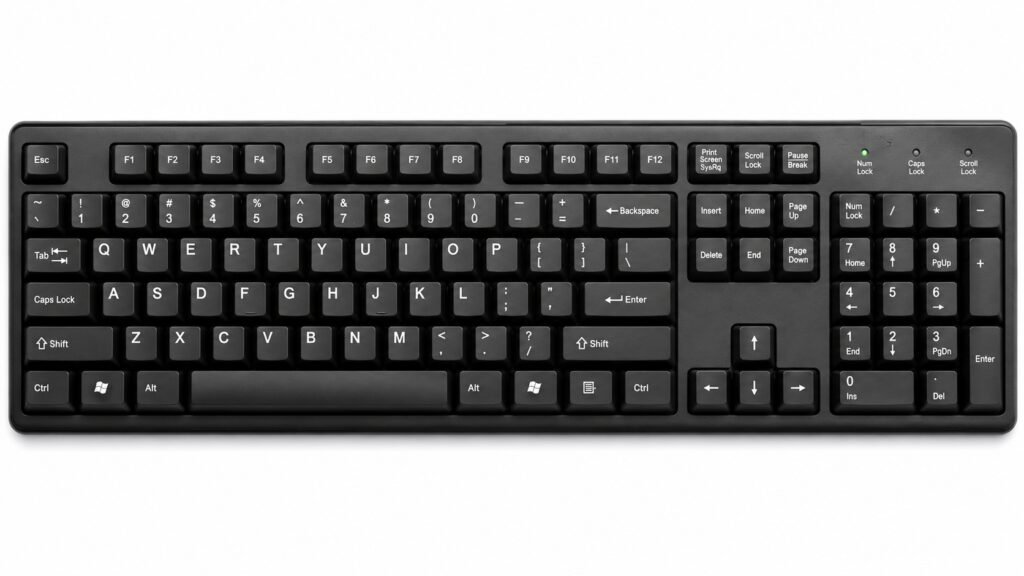
Function Keys
| Key | Function | Simple Explanation |
|---|---|---|
| F1 | Help | Opens Help in many applications. |
| F2 | Rename | Renames a selected file or folder in Windows. |
| F3 | Search | Opens or focuses search in many applications. |
| F4 | Address Bar/Action | Performs different functions depending on the application. |
| F5 | Refresh | Refreshes a webpage, folder, or screen in many applications. |
| F6 | Navigation | Moves focus between different areas of an application. |
| F7 | Spelling/Other Function | Opens spelling or other application-specific features. |
| F8 | Startup/Selection | Performs different functions depending on the application. |
| F9 | Refresh/Update | Performs application-specific functions. |
| F10 | Menu | Activates the menu bar in many Windows applications. |
| F11 | Full Screen | Opens or exits full-screen mode in many applications. |
| F12 | Developer/Save As | Performs different functions depending on the application. |
Important Keyboard Keys
| Key | Function | Simple Explanation |
|---|---|---|
| Esc | Escape | Cancels an operation or closes a menu/dialog. |
| Tab | Move Forward | Moves to the next field or option. |
| Caps Lock | Capital Letters | Types letters in uppercase until turned off. |
| Shift | Uppercase/Symbol | Used with other keys for capital letters and special symbols. |
| Ctrl | Control | Used with other keys to perform shortcuts. |
| Alt | Alternate | Used with other keys to access commands and menus. |
| Windows Key | Start | Opens the Windows Start menu. |
| Spacebar | Space | Inserts a blank space. |
| Enter | Confirm/New Line | Confirms a command or starts a new line. |
| Backspace | Delete Left | Deletes the character to the left of the cursor. |
| Delete | Delete Right | Deletes the selected item or character to the right. |
| Insert | Insert/Overwrite | Changes text insertion behavior in applications that support it. |
| Home | Beginning | Moves to the beginning of a line or document area. |
| End | End | Moves to the end of a line or document area. |
| Page Up | Previous Screen | Moves upward by approximately one screen. |
| Page Down | Next Screen | Moves downward by approximately one screen. |
| Arrow Keys | Navigate | Move the cursor or selection. |
| Print Screen | Screenshot | Captures the screen or copies it to the Clipboard depending on Windows settings. |
| Num Lock | Number Pad | Turns the numeric keypad number function on/off. |
| Scroll Lock | Scroll Control | Controls scrolling behavior in applications that support it. |
| Pause/Break | Pause | Performs special functions in some applications. |
Ctrl Shortcut Keys
These are some of the most commonly used keyboard shortcuts.
| Shortcut Key | Function | Simple Explanation |
|---|---|---|
| Ctrl + A | Select All | Selects all available content. |
| Ctrl + B | Bold | Makes selected text bold in supported applications. |
| Ctrl + C | Copy | Copies selected content. |
| Ctrl + D | Bookmark/Duplicate | Performs different functions depending on the application. |
| Ctrl + E | Center/Other Function | Centers text in many word processors. |
| Ctrl + F | Find | Searches for text. |
| Ctrl + G | Go To/Group | Performs different functions depending on the application. |
| Ctrl + H | Replace/History | Opens Replace in many editors or History in browsers. |
| Ctrl + I | Italic | Makes selected text italic. |
| Ctrl + J | Downloads/Justify | Performs different functions depending on the application. |
| Ctrl + K | Hyperlink | Inserts a hyperlink in many applications. |
| Ctrl + L | Address Bar/Align Left | Performs different functions depending on the application. |
| Ctrl + M | Formatting/New Item | Performs different functions depending on the application. |
| Ctrl + N | New | Creates a new document/window in many applications. |
| Ctrl + O | Open | Opens a file or project. |
| Ctrl + P | Opens the Print dialog. | |
| Ctrl + Q | Quit/Other Function | Performs application-specific actions. |
| Ctrl + R | Refresh/Align Right | Performs different functions depending on the application. |
| Ctrl + S | Save | Saves the current file. |
| Ctrl + T | New Tab | Opens a new browser tab in web browsers. |
| Ctrl + U | Underline | Underlines selected text in supported applications. |
| Ctrl + V | Paste | Pastes copied or cut content. |
| Ctrl + W | Close | Closes the current document or browser tab. |
| Ctrl + X | Cut | Cuts selected content. |
| Ctrl + Y | Redo | Repeats or restores an undone action. |
| Ctrl + Z | Undo | Reverses the last action. |
Shift Shortcut Keys
| Shortcut Key | Function | Simple Explanation |
|---|---|---|
| Shift + Arrow | Select Text | Selects text or items in the arrow direction. |
| Shift + Home | Select to Beginning | Selects from the cursor to the beginning of the line. |
| Shift + End | Select to End | Selects from the cursor to the end of the line. |
| Shift + Page Up | Select Up | Selects content upward. |
| Shift + Page Down | Select Down | Selects content downward. |
| Shift + Delete | Permanent Delete | Deletes a selected file without sending it to the Recycle Bin. |
| Shift + F10 | Context Menu | Opens the right-click menu. |
| Shift + Tab | Previous Field | Moves to the previous field. |
Alt Shortcut Keys
| Shortcut Key | Function | Simple Explanation |
|---|---|---|
| Alt + Tab | Switch Apps | Switches between open applications. |
| Alt + F4 | Close | Closes the active window. |
| Alt + Enter | Properties | Opens properties for a selected file or folder. |
| Alt + Space | Window Menu | Opens the active window’s menu. |
| Alt + Left Arrow | Back | Goes back to the previous location in many applications. |
| Alt + Right Arrow | Forward | Goes forward in many applications. |
| Alt + Up Arrow | Parent Folder | Moves up one folder level in File Explorer. |
| Alt + D | Address Bar | Selects the address bar in File Explorer and browsers where supported. |
Windows Key Shortcut Keys
| Shortcut Key | Function | Simple Explanation |
|---|---|---|
| Windows | Start | Opens the Start menu. |
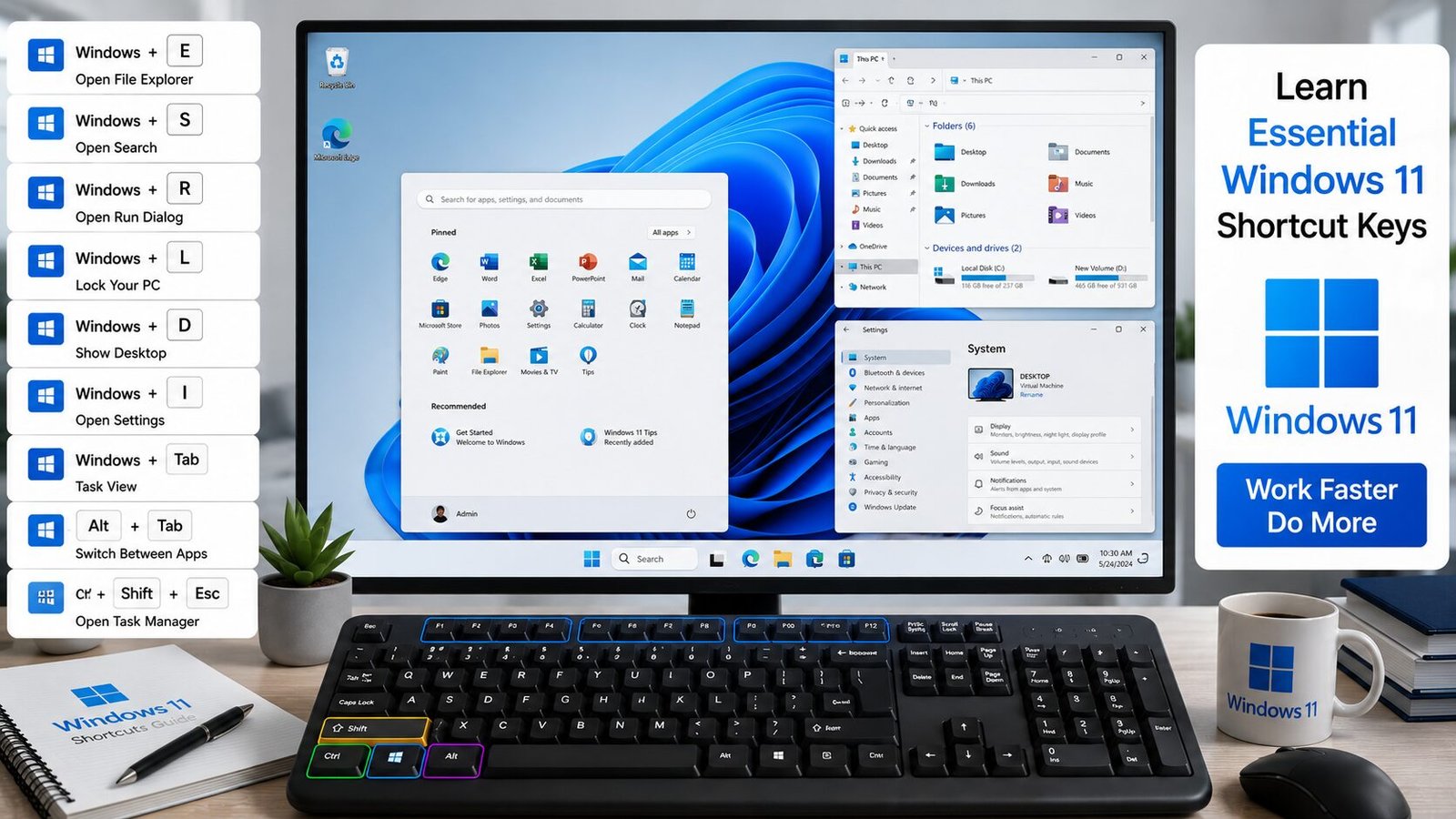
| Windows + D | Show Desktop | Shows or hides the desktop. |
| Windows + E | File Explorer | Opens File Explorer. |
| Windows + I | Settings | Opens Windows Settings. |
| Windows + L | Lock | Locks the computer. |
| Windows + R | Run | Opens the Run dialog box. |
| Windows + S | Search | Opens Windows Search. |
| Windows + A | Quick Settings/Action Center | Opens quick settings in newer Windows versions. |
| Windows + X | Quick Link Menu | Opens advanced Windows tools. |
| Windows + V | Clipboard | Opens Clipboard History when enabled. |
| Windows + P | Project | Opens display projection options. |
| Windows + U | Accessibility | Opens accessibility settings. |
| Windows + Tab | Task View | Shows open applications and virtual desktops. |
| Windows + G | Game Bar | Opens Xbox Game Bar. |
| Windows + W | Widgets | Opens Widgets in supported Windows versions. |
| Windows + Z | Snap Layouts | Opens Snap Layout options in Windows 11. |
Window Management Shortcut Keys
| Shortcut Key | Function | Simple Explanation |
|---|---|---|
| Alt + Tab | Switch Window | Switches between open programs. |
| Alt + F4 | Close Window | Closes the active window. |
| Windows + Up Arrow | Maximize | Maximizes the active window. |
| Windows + Down Arrow | Minimize/Restore | Minimizes or restores the active window. |
| Windows + Left Arrow | Snap Left | Places the window on the left side. |
| Windows + Right Arrow | Snap Right | Places the window on the right side. |
| Windows + Home | Minimize Others | Minimizes other windows. |
| Windows + D | Desktop | Shows or hides the desktop. |
| Windows + M | Minimize All | Minimizes all windows. |
File Management Shortcut Keys
| Shortcut Key | Function | Simple Explanation |
|---|---|---|
| Ctrl + C | Copy | Copies a file or folder. |
| Ctrl + X | Cut | Cuts a file or folder. |
| Ctrl + V | Paste | Pastes the file or folder. |
| Ctrl + A | Select All | Selects all files/folders. |
| Ctrl + Z | Undo | Reverses the previous file operation. |
| Ctrl + Y | Redo | Repeats an undone operation. |
| Ctrl + Shift + N | New Folder | Creates a new folder. |
| F2 | Rename | Renames a selected file/folder. |
| Delete | Recycle Bin | Moves selected items to the Recycle Bin. |
| Shift + Delete | Permanent Delete | Deletes selected items permanently. |
| Alt + Enter | Properties | Displays file/folder properties. |
Internet Browser Shortcut Keys
| Shortcut Key | Function | Simple Explanation |
|---|---|---|
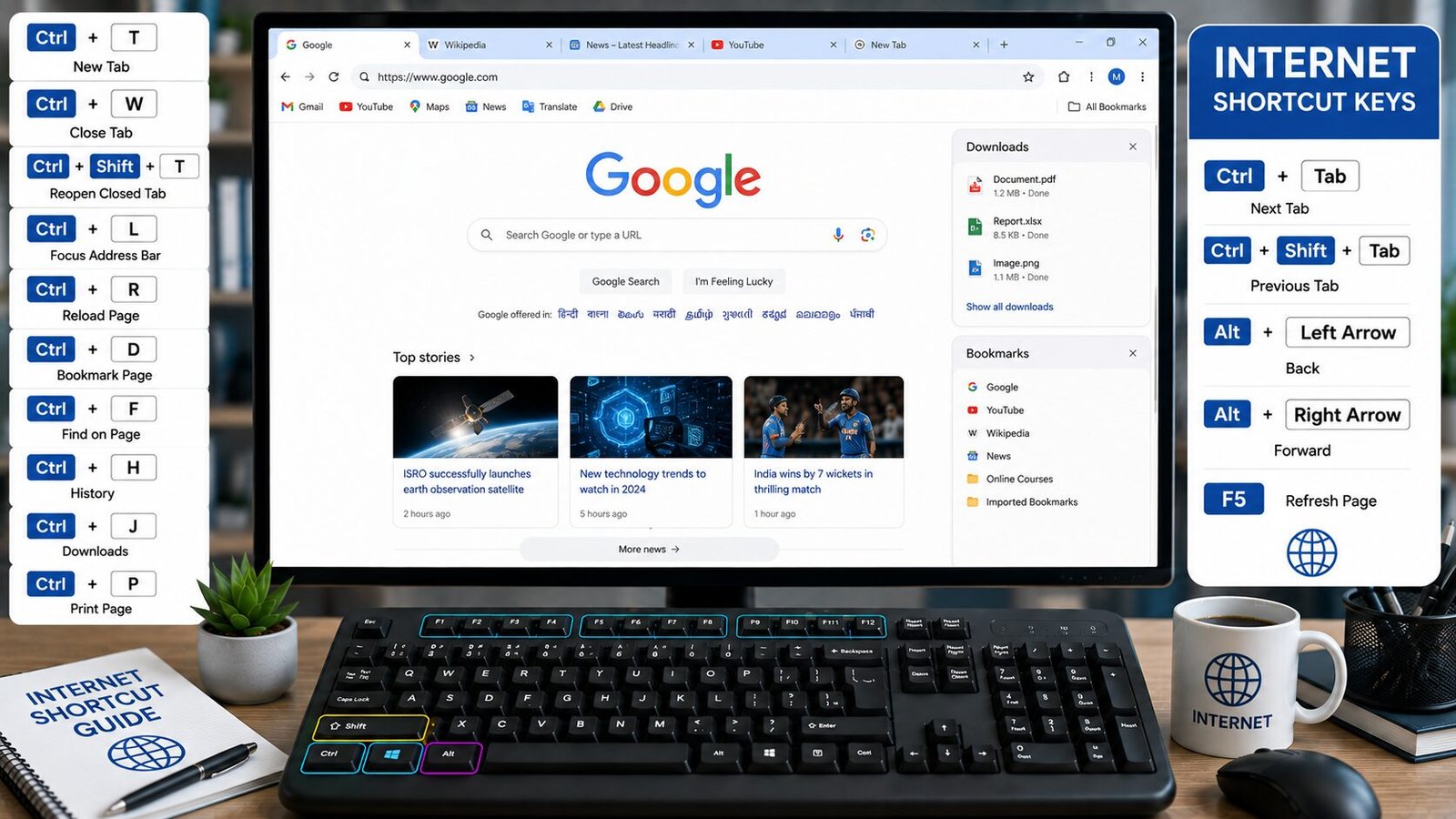
| Ctrl + T | New Tab | Opens a new browser tab. |
| Ctrl + W | Close Tab | Closes the current tab. |
| Ctrl + Shift + T | Reopen Tab | Reopens the last closed tab. |
| Ctrl + N | New Window | Opens a new browser window. |
| Ctrl + Shift + N | Private Window | Opens Incognito/private browsing in supported browsers. |
| Ctrl + L | Address Bar | Selects the website address. |
| Ctrl + F | Find | Finds text on the webpage. |
| Ctrl + D | Bookmark | Saves the current webpage as a bookmark. |
| Ctrl + H | History | Opens browsing history. |
| Ctrl + J | Downloads | Opens downloads. |
| Ctrl + R | Refresh | Reloads the webpage. |
| F5 | Refresh | Reloads the webpage. |
| Ctrl + + | Zoom In | Makes webpage content larger. |
| Ctrl + – | Zoom Out | Makes webpage content smaller. |
| Ctrl + 0 | Reset Zoom | Returns the webpage to normal zoom. |
| Alt + Left Arrow | Back | Goes to the previous webpage. |
| Alt + Right Arrow | Forward | Goes to the next webpage. |
Text Editing Shortcut Keys
| Shortcut Key | Function | Simple Explanation |
|---|---|---|
| Ctrl + A | Select All | Selects all text. |
| Ctrl + C | Copy | Copies selected text. |
| Ctrl + X | Cut | Cuts selected text. |
| Ctrl + V | Paste | Pastes text. |
| Ctrl + Z | Undo | Reverses the last change. |
| Ctrl + Y | Redo | Repeats the previous change. |
| Ctrl + B | Bold | Makes text bold. |
| Ctrl + I | Italic | Makes text italic. |
| Ctrl + U | Underline | Underlines text. |
| Ctrl + F | Find | Searches for text. |
| Home | Start of Line | Moves to the beginning of a line. |
| End | End of Line | Moves to the end of a line. |
| Ctrl + Home | Start of Document | Moves to the beginning. |
| Ctrl + End | End of Document | Moves to the end. |
Screenshot Shortcut Keys
| Shortcut Key | Function | Simple Explanation |
|---|---|---|
| PrtScn | Screenshot | Captures the screen to the Clipboard in common Windows configurations. |
| Alt + PrtScn | Active Window | Captures the active window. |
| Windows + PrtScn | Save Screenshot | Captures the full screen and saves it automatically. |
| Windows + Shift + S | Snipping Tool | Lets you select an area of the screen. |
Clipboard Shortcut Keys
| Shortcut Key | Function | Simple Explanation |
|---|---|---|
| Ctrl + C | Copy | Copies selected content. |
| Ctrl + X | Cut | Cuts selected content. |
| Ctrl + V | Paste | Pastes copied content. |
| Windows + V | Clipboard History | Displays previously copied items when enabled. |
Accessibility Shortcut Keys
| Shortcut Key | Function | Simple Explanation |
|---|---|---|
| Windows + U | Accessibility | Opens accessibility settings. |
| Windows + Plus (+) | Magnifier | Opens or increases Magnifier. |
| Windows + Minus (-) | Zoom Out | Decreases Magnifier zoom. |
| Windows + Esc | Close Magnifier | Closes Magnifier. |
| Windows + Ctrl + Enter | Narrator | Turns Narrator on or off. |
| Shift 5 Times | Sticky Keys | Opens Sticky Keys options. |
Function Keys in Common Applications
Function keys can perform different actions depending on the software.
| Key | Common Use |
|---|---|
| F1 | Help |
| F2 | Rename |
| F3 | Search |
| F4 | Address Bar/Other Commands |
| F5 | Refresh |
| F6 | Navigation |
| F7 | Spelling/Grammar in some applications |
| F8 | Application-specific command |
| F9 | Application-specific command |
| F10 | Menu Bar |
| F11 | Full Screen |
| F12 | Developer Tools/Save As depending on application |
Number Pad Keys
| Key | Function | Simple Explanation |
|---|---|---|
| Num Lock | Number Mode | Turns numeric keypad numbers on/off. |
| 0–9 | Numbers | Enters numbers. |
| + | Addition | Mathematical addition. |
| – | Subtraction | Mathematical subtraction. |
| * | Multiplication | Mathematical multiplication. |
| / | Division | Mathematical division. |
| . | Decimal | Enters a decimal point. |
| Enter | Confirm | Confirms the calculation or command. |
Special Character Keys
| Key | Common Character |
|---|---|
| Shift + 1 | ! |
| Shift + 2 | @ |
| Shift + 3 | # |
| Shift + 4 | $ |
| Shift + 5 | % |
| Shift + 6 | ^ |
| Shift + 7 | & |
| Shift + 8 | * |
| Shift + 9 | ( |
| Shift + 0 | ) |
The exact symbols can differ with the selected keyboard layout and language.
Practical Keyboard Example
Suppose you are creating a computer assignment.
- Press Windows + E to open File Explorer.
- Press Ctrl + Shift + N to create a new folder.
- Press F2 to rename the folder.
- Open Microsoft Word.
- Type your assignment.
- Press Ctrl + A to select text.
- Press Ctrl + B to make important text bold.
- Press Ctrl + C to copy information.
- Press Ctrl + V to paste it.
- Press Ctrl + Z if you make a mistake.
- Press Ctrl + S to save your work.
- Press Alt + Tab to switch between applications.
- Press Windows + Shift + S to take a screenshot.
- Press Windows + L when you finish working.
Keyboard Shortcut Practice for Students
A good way to learn keyboard shortcuts is to practice them every day.
Practice 1 – File Management
- Windows + E
- Ctrl + Shift + N
- F2
- Ctrl + C
- Ctrl + V
- Delete
Practice 2 – Text Editing
- Ctrl + A
- Ctrl + C
- Ctrl + X
- Ctrl + V
- Ctrl + Z
- Ctrl + Y
- Ctrl + B
- Ctrl + I
- Ctrl + U
Practice 3 – Internet
- Ctrl + T
- Ctrl + W
- Ctrl + Shift + T
- Ctrl + L
- Ctrl + F
- Ctrl + D
- Ctrl + H
- Ctrl + J
- Ctrl + Tab
Practice 4 – Windows
- Windows + E
- Windows + I
- Windows + R
- Windows + S
- Windows + D
- Windows + L
- Alt + Tab
- Ctrl + Shift + Esc
Most Important Keyboard Shortcuts to Learn First
Ctrl + A – Select All
Ctrl + B – Bold
Ctrl + C – Copy
Ctrl + F – Find
Ctrl + I – Italic
Ctrl + N – New
Ctrl + O – Open
Ctrl + P – Print
Ctrl + S – Save
Ctrl + T – New Tab
Ctrl + U – Underline
Ctrl + V – Paste
Ctrl + W – Close
Ctrl + X – Cut
Ctrl + Y – Redo
Ctrl + Z – Undo
Ctrl + Shift + T – Reopen Closed Tab
Ctrl + Shift + N – New Folder/Private Window depending on context
Alt + Tab – Switch Applications
Alt + F4 – Close Window
Windows + D – Show Desktop
Windows + E – File Explorer
Windows + I – Settings
Windows + L – Lock Computer
Windows + R – Run
Windows + S – Search
Windows + V – Clipboard History
Windows + X – Quick Link Menu
Windows + Tab – Task View
Windows + Shift + S – Screenshot
Ctrl + Shift + Esc – Task Manager
F2 – Rename
F5 – Refresh
F11 – Full Screen
Esc – Cancel/Exit
Home – Beginning
End – End
Page Up – Scroll Up
Page Down – Scroll Down
Delete – Delete
Shift + Delete – Permanent Delete
Practical Learning Tip
If you are learning Computer Fundamentals and Keyboard Skills, do not try to memorize every shortcut in one day. Start with Ctrl + C, Ctrl + V, Ctrl + X, Ctrl + Z, Ctrl + A, Ctrl + S, Ctrl + F, Ctrl + P, Alt + Tab, Alt + F4, Windows + E, Windows + R, Windows + L, F2, and F5.

SNCEC PORTAL
Student & Website Links
Quick access to student services, courses, learning resources and SNCEC information.
Student Login
Access your student account
Student Registration
Create your student account
Student Dashboard
Manage your learning activities
Courses
Explore our job-oriented courses
All Courses List
View complete course catalog
Mock Tests & Quizzes
Practice and test your knowledge
Student Zone
Access student services and resources
Student Zone →Learning Portal
Access online learning resources
Open Portal →Knowledge Base
Access computer learning notes and knowledge resources
Open Knowledge Base →SNCEC Digital Seva
Access digital services and online assistance
Open Digital Seva →Instructor Registration
Join us as an instructor
Our Team
Meet our professional team
About Us
Learn more about SNCEC
Contact Us
Get in touch with our team
Computer Shop
Computers, accessories & IT products
SNCEC Official Website
Shree Narayan Computers & Education Center