
Main Functioning Keys of Computer Keyboard
Introduction to Computer Keyboard Keys
A computer keyboard is one of the most essential input devices used to communicate with a computer. Whether you are writing a document, browsing the internet, programming software, or playing games, the keyboard acts as the primary bridge between the user and the machine. Although modern devices support touchscreens and voice commands, keyboards remain indispensable because of their speed, accuracy, and versatility.
| All Courses | View List | Enroll Now |
| Mock Tests/Quizzes | View All |
| Student Registration | Register Now |
| Become an Instructor | Apply Now |
| Dashboard | Click Here |
| Student Zone | Click Here |
| Our Team | Meet the Members |
| Contact Us | Get in Touch |
| About Us | Read More |
| Knowledge Base | Click Here |
| Classes/Batches: Class 6th to 12th, BA, B.Sc, B.Com (All Subjects) — Online & Offline Available | Click Here |
| Exam Preparation: SSC, Railway, Police, Banking, TET, UPTET, CTET, and More | Click Here |
| Shree Narayan Computers & Education Center | Home Page |
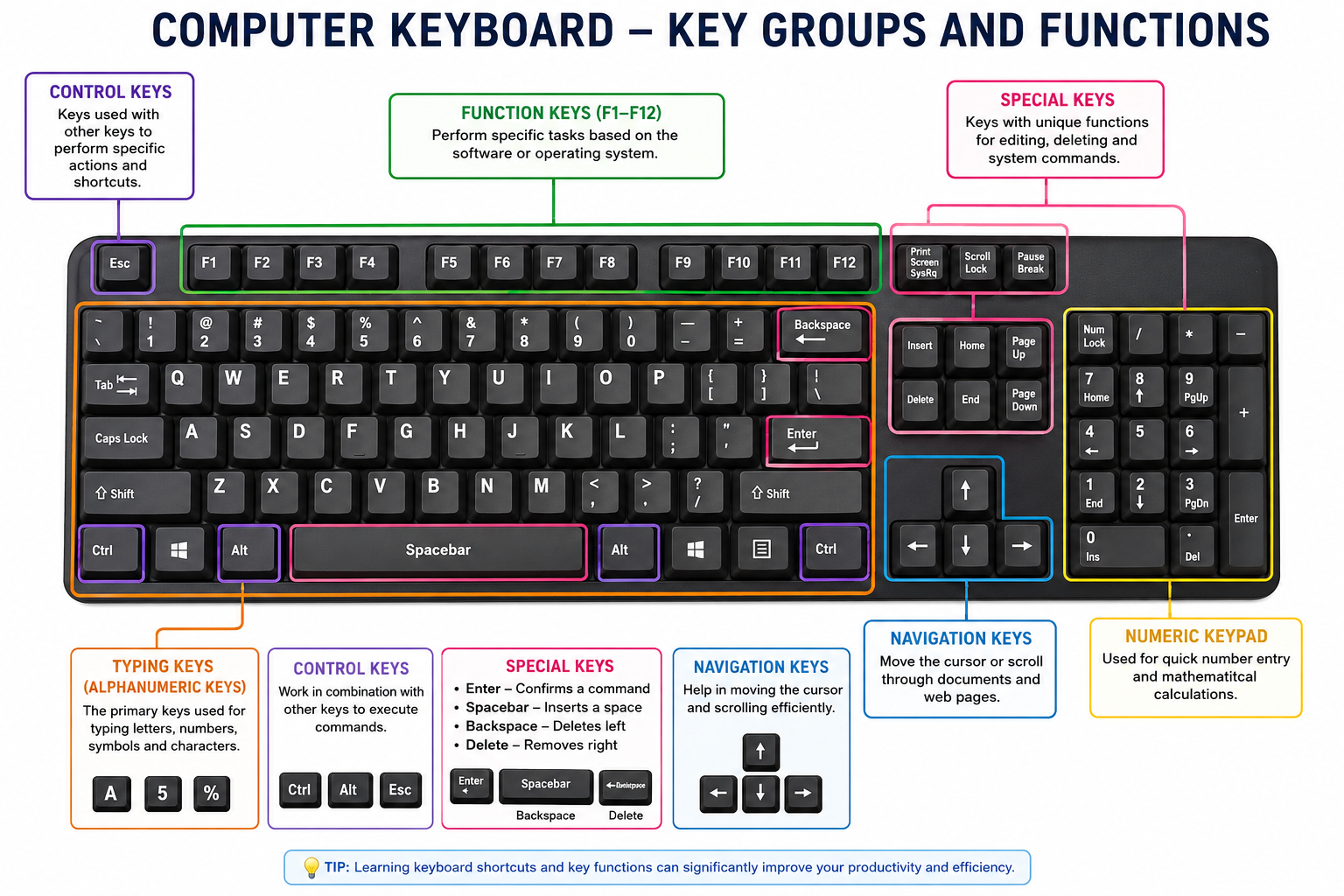
A standard keyboard contains multiple categories of keys, each designed to perform specific functions. These include typing keys, function keys, control keys, navigation keys, and special keys. Understanding the purpose of each key can significantly improve productivity and help users perform tasks more efficiently. Many people use only a small portion of their keyboard’s capabilities, leaving powerful shortcuts and commands unexplored.
The design of modern keyboards has evolved over decades, but the basic arrangement remains familiar worldwide. Learning the main functioning keys not only helps beginners become comfortable with computers but also allows experienced users to optimize their workflow. By understanding how each section of the keyboard operates, users can navigate software, manage files, and execute commands much faster.
Understanding the Layout of a Standard Keyboard
A standard computer keyboard is divided into several sections, each serving a distinct purpose. These sections include the alphanumeric area, function keys, navigation keys, numeric keypad, and control keys. This organized arrangement helps users locate keys quickly and perform tasks efficiently.
The layout is carefully designed to balance accessibility and usability. Frequently used keys are placed within easy reach of the fingers, while specialized keys are grouped together. This structure enables users to transition smoothly between typing, navigation, and command execution.
QWERTY Keyboard Arrangement
The most widely used keyboard layout is the QWERTY layout, named after the first six letters appearing on the top row of alphabet keys. Originally developed for typewriters, the QWERTY arrangement remains the global standard for computer keyboards.
The layout was designed to reduce mechanical jams in early typewriters by separating commonly used letter combinations. Although technology has advanced dramatically, the QWERTY layout persists because millions of users have become accustomed to it. Learning this arrangement is essential for developing typing speed and accuracy.
Importance of Keyboard Familiarity
Familiarity with keyboard layouts enhances efficiency and reduces dependence on the mouse. Users who understand key locations can perform tasks more quickly and accurately. Touch typing, for example, allows individuals to type without looking at the keyboard, increasing productivity significantly.
Professional writers, programmers, data entry operators, and office workers benefit greatly from keyboard proficiency. Understanding the main keyboard sections creates a foundation for mastering shortcuts and advanced computer operations.
Typing Keys (Alphanumeric Keys)
The largest section of a keyboard consists of typing keys, also known as alphanumeric keys. These keys include letters, numbers, punctuation marks, and special symbols used in everyday computing tasks.
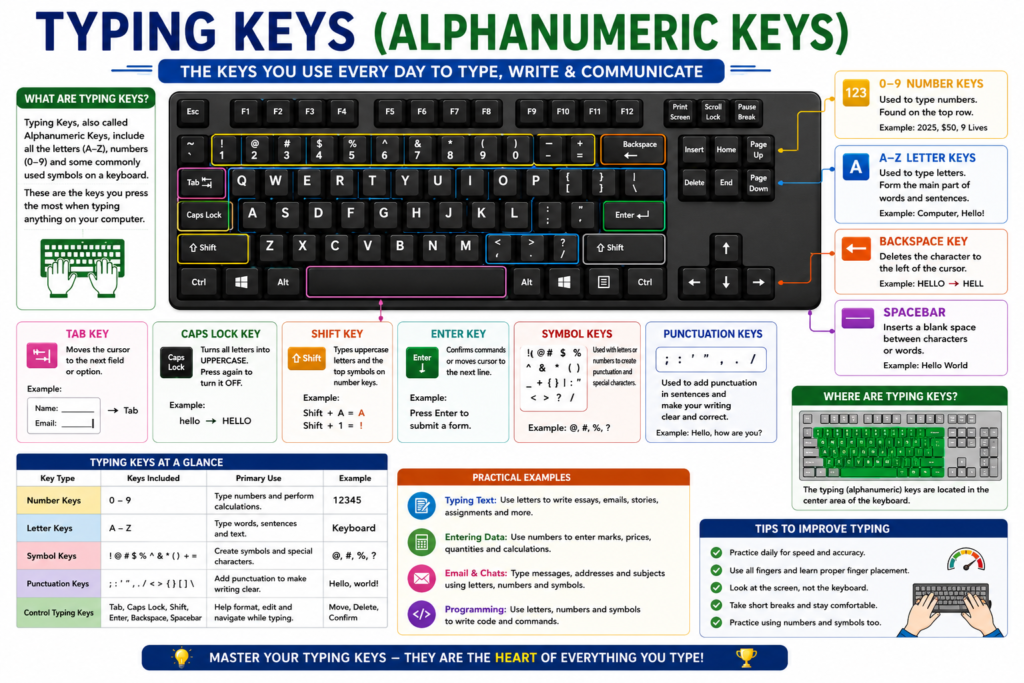
Typing keys are responsible for entering text into documents, emails, spreadsheets, websites, and applications. They form the foundation of user interaction with digital devices. Because they are used constantly, these keys occupy the central portion of the keyboard.
Letters and Number Keys
Alphabet keys range from A to Z and are used for writing words, sentences, and commands. Number keys, usually located above the letters, allow users to enter numerical values and perform calculations.
These keys are essential for nearly every computer activity. Students use them for assignments, professionals use them for reports, and programmers use them to write code. Their universal functionality makes them the most frequently used keys on the keyboard.
Symbols and Special Characters
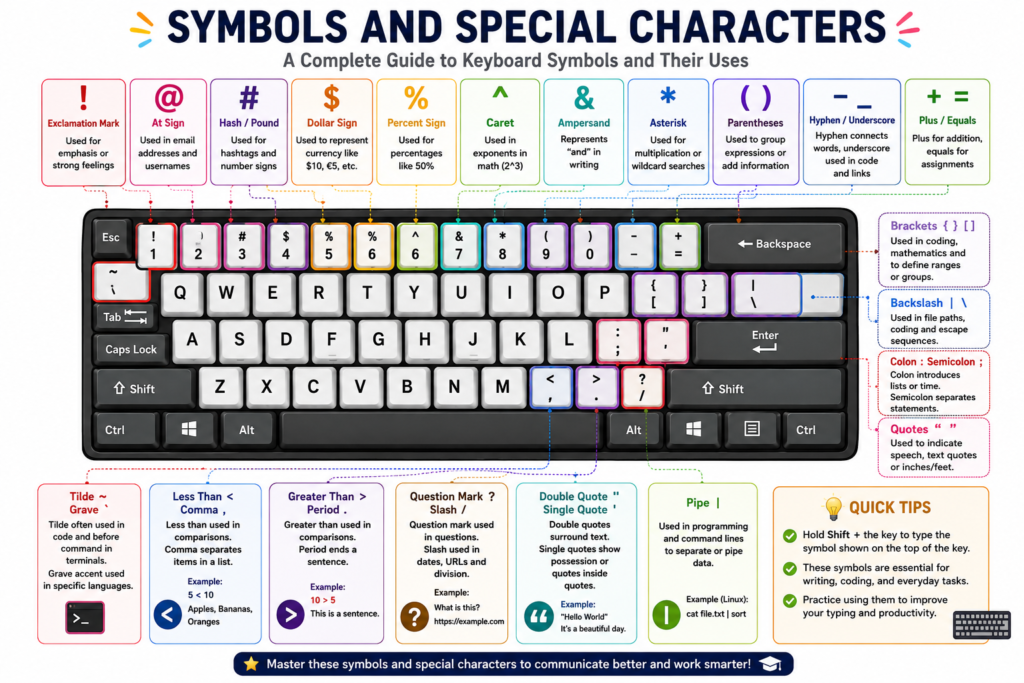
Typing keys also include symbols such as:
| Symbol | Usage |
|---|---|
| @ | Email addresses |
| # | Hashtags and programming |
| $ | Currency representation |
| % | Percentages |
| & | Logical operations and writing |
| * | Multiplication and wildcard searches |
Special characters play an important role in mathematics, coding, online communication, and document formatting. Understanding how to access these symbols using the Shift key expands the keyboard’s usefulness considerably.
Function Keys
Function keys are located along the top row of the keyboard and are labeled F1 through F12. These keys provide quick access to specific commands and software functions.
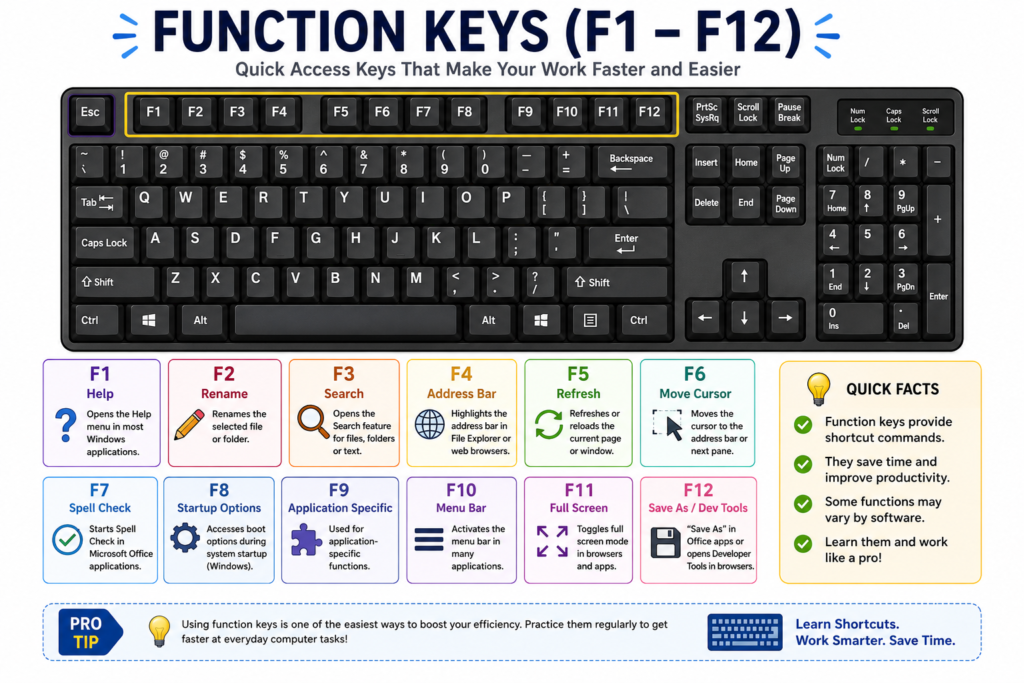
Although their exact functions may vary depending on the application, function keys remain valuable tools for improving efficiency. They often eliminate the need to navigate through multiple menus.
Overview of F1 to F12 Keys
The following table summarizes common function key uses:
| Function Key | Common Function |
|---|---|
| F1 | Help Menu |
| F2 | Rename File |
| F3 | Search Feature |
| F4 | Address Bar (Browser) |
| F5 | Refresh Page |
| F6 | Move Cursor |
| F7 | Spell Check |
| F8 | Startup Options |
| F9 | Application-Specific |
| F10 | Menu Bar Activation |
| F11 | Full Screen Mode |
| F12 | Save As / Developer Tools |
Common Uses of Function Keys
Function keys save time by providing immediate access to commands. For instance, pressing F5 refreshes a webpage instantly, while F11 enables full-screen viewing. These shortcuts are widely used in offices, educational institutions, and software development environments.
Mastering function keys can significantly reduce repetitive actions and streamline daily computing activities.
Control Keys
Control keys modify the behavior of other keys and execute commands when used in combination. They include Ctrl, Alt, and Esc, among others.
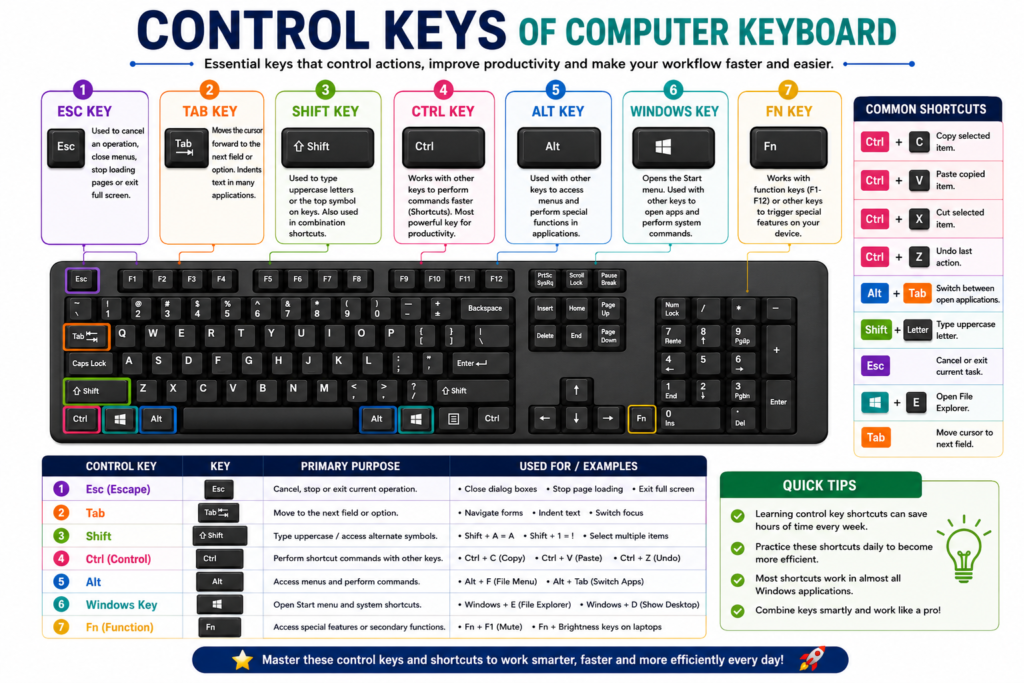
These keys are fundamental for keyboard shortcuts, making them essential for advanced computer usage.
Ctrl Key
The Ctrl (Control) key is commonly used with other keys to perform shortcuts.
Popular examples include:
- Ctrl + C = Copy
- Ctrl + V = Paste
- Ctrl + X = Cut
- Ctrl + Z = Undo
- Ctrl + S = Save
These shortcuts are recognized across most operating systems and applications.
Alt Key
The Alt key provides alternative commands and menu access. It is frequently combined with other keys for specialized functions. For example, Alt + Tab allows users to switch between open applications quickly.
This key is particularly useful for multitasking and navigating software environments efficiently.
Esc Key
The Esc (Escape) key is designed to cancel or exit ongoing operations. Users commonly press Esc to close menus, stop processes, or exit full-screen modes.
Its ability to provide an immediate exit option makes it a valuable troubleshooting tool during software use.
Navigation Keys
Navigation keys help users move through documents, webpages, spreadsheets, and applications without using a mouse.
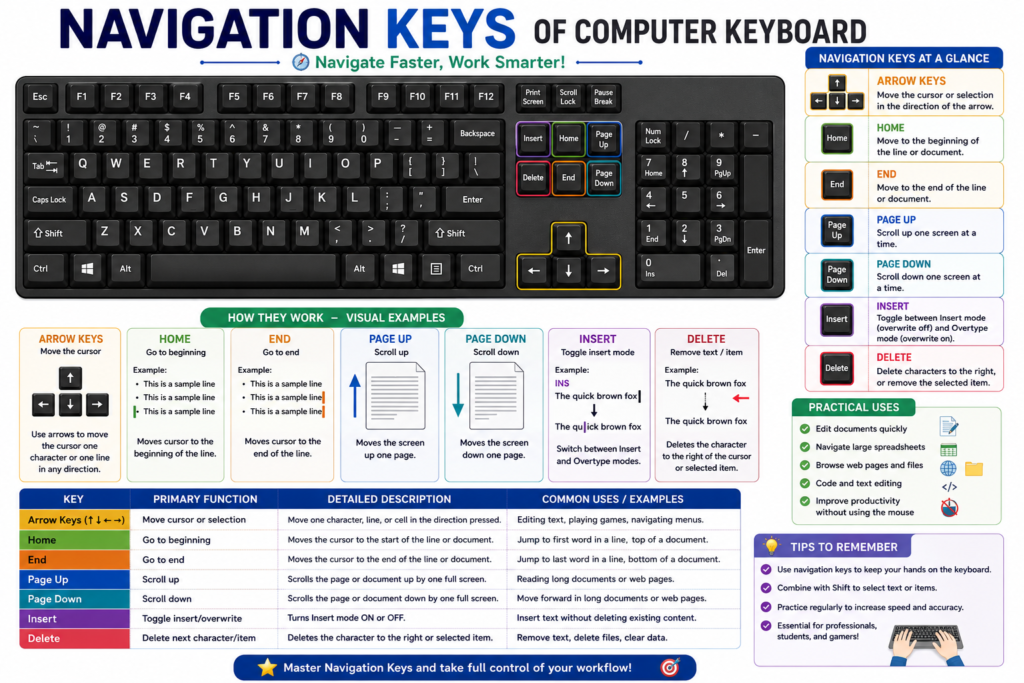
These keys are particularly beneficial when working with large amounts of text or data.
Arrow Keys
The arrow keys move the cursor or selection in four directions:
- Up
- Down
- Left
- Right
These keys are widely used in text editing, gaming, spreadsheet management, and menu navigation.
Home, End, Page Up, and Page Down
These navigation keys provide quick movement through content:
| Key | Function |
|---|---|
| Home | Move to beginning |
| End | Move to end |
| Page Up | Scroll upward |
| Page Down | Scroll downward |
They are especially useful when working with lengthy documents and web pages.
Numeric Keypad
Many full-sized keyboards include a numeric keypad on the right side. This section resembles a calculator and contains numbers, arithmetic operators, and an Enter key.
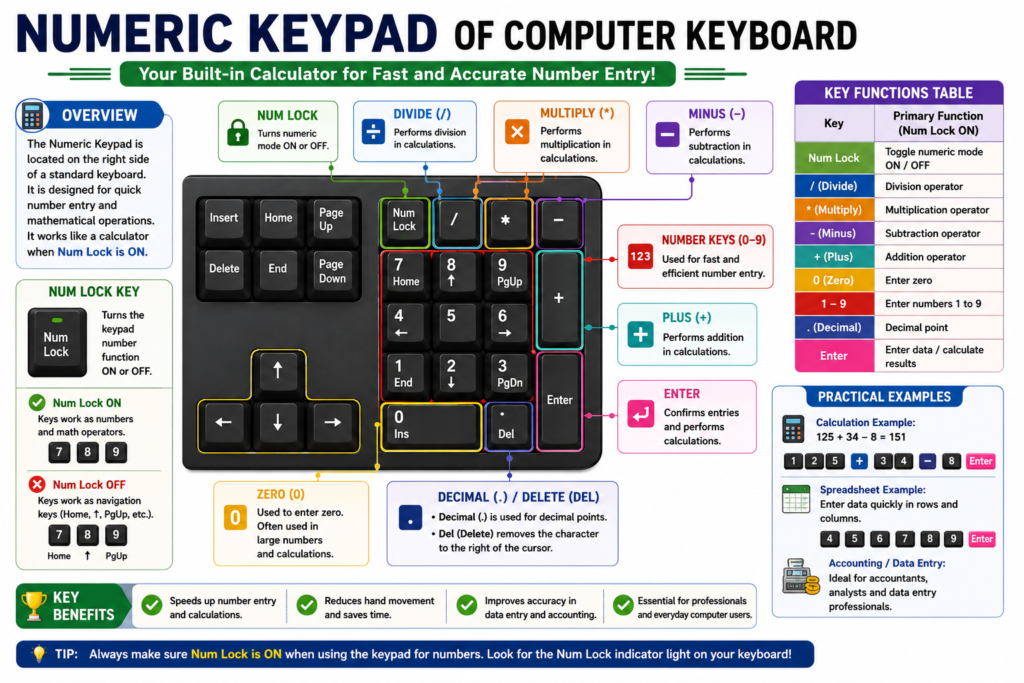
Purpose and Advantages
The numeric keypad enables rapid data entry and calculations. Accountants, financial analysts, cashiers, and data-entry professionals rely heavily on it because it improves speed and accuracy.
When Num Lock is activated, the keypad functions as a calculator-style input area. This design reduces hand movement and enhances efficiency for numerical tasks.
Special Keys
Special keys perform unique actions that support typing, editing, and navigation.
Enter Key
The Enter key confirms commands, submits forms, starts new lines, and executes actions in software applications. It is one of the most frequently pressed keys on any keyboard.
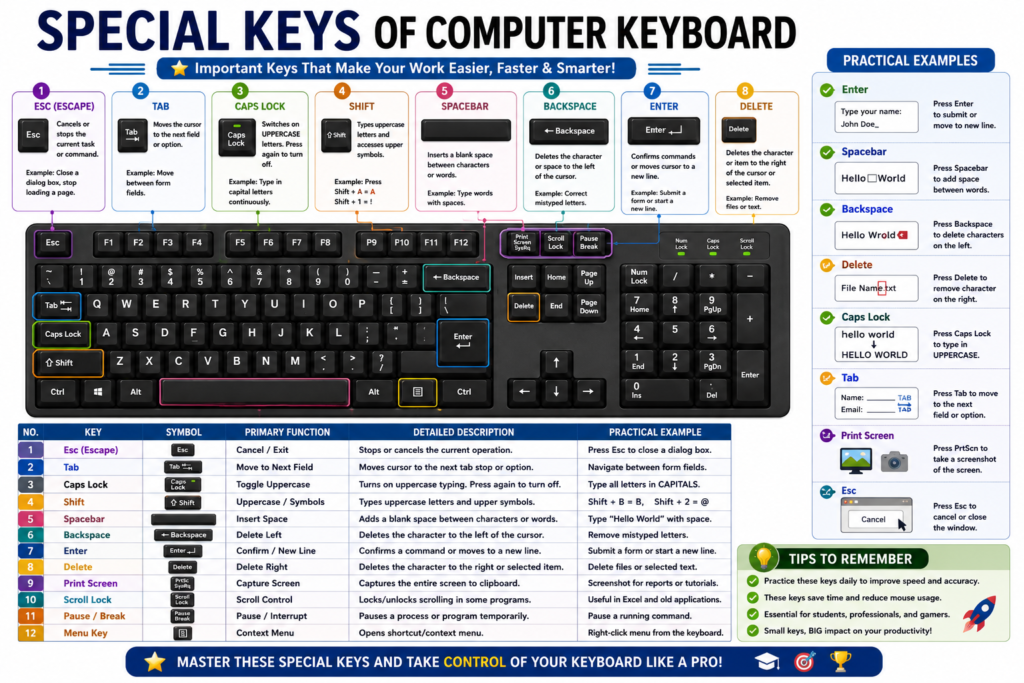
Without the Enter key, interacting with applications and completing tasks would be significantly more cumbersome.
Spacebar
The Spacebar is the longest key on the keyboard and is used to insert spaces between words. Despite its simplicity, it plays a critical role in creating readable text and formatting documents.
Users press the Spacebar thousands of times while typing, making it one of the most utilized keys.
Backspace and Delete Keys
Both keys remove content but serve different purposes:
| Key | Function |
|---|---|
| Backspace | Deletes characters to the left |
| Delete | Deletes characters to the right |
These editing tools help users correct mistakes quickly and maintain accurate documents.
Conclusion
The main functioning keys of a computer keyboard are categorized into typing keys, function keys, control keys, navigation keys, numeric keypad keys, and special keys. Each category serves a unique purpose that contributes to efficient computer operation. From entering text and navigating documents to executing shortcuts and calculations, keyboard keys work together to provide a seamless user experience.
A solid understanding of keyboard functions can dramatically improve productivity, accuracy, and overall computing efficiency. Whether you are a beginner learning basic operations or a professional seeking faster workflows, mastering these keys is an essential computer skill.