
Computer Shortcut Keys PDF Guide
Computer Shortcut Keys PDF Guide
Understanding Computer Shortcut Keys
Computer users often spend countless hours performing repetitive tasks that could be completed much faster with the help of keyboard shortcuts. Whether you’re a student preparing assignments, an office worker handling spreadsheets, a programmer writing code, or simply someone browsing the internet, shortcut keys can significantly improve efficiency. A shortcut key is a combination of keys that performs a specific action without requiring users to navigate through menus or use a mouse extensively.
| All Courses | View List | Enroll Now |
| Mock Tests/Quizzes | View All |
| Student Registration | Register Now |
| Become an Instructor | Apply Now |
| Dashboard | Click Here |
| Student Zone | Click Here |
| Our Team | Meet the Members |
| Contact Us | Get in Touch |
| About Us | Read More |
| Knowledge Base | Click Here |
| Classes/Batches: Class 6th to 12th, BA, B.Sc, B.Com (All Subjects) — Online & Offline Available | Click Here |
| Exam Preparation: SSC, Railway, Police, Banking, TET, UPTET, CTET, and More | Click Here |
| Shree Narayan Computers & Education Center | Home Page |
The concept of keyboard shortcuts has been around since the early days of personal computing. Despite advances in touchscreens, voice commands, and AI-powered tools, keyboard shortcuts remain one of the fastest ways to interact with a computer. Think of them as secret pathways through a busy city. While most people sit in traffic using menus and mouse clicks, shortcut users take the express lane and reach their destination faster.
Learning shortcut keys does not require technical expertise. Most shortcuts follow logical patterns and can be memorized gradually through daily practice. Once mastered, they become second nature and dramatically improve workflow speed. Businesses often encourage employees to use shortcuts because even small time savings can accumulate into significant productivity gains over weeks and months.
What Are Shortcut Keys?
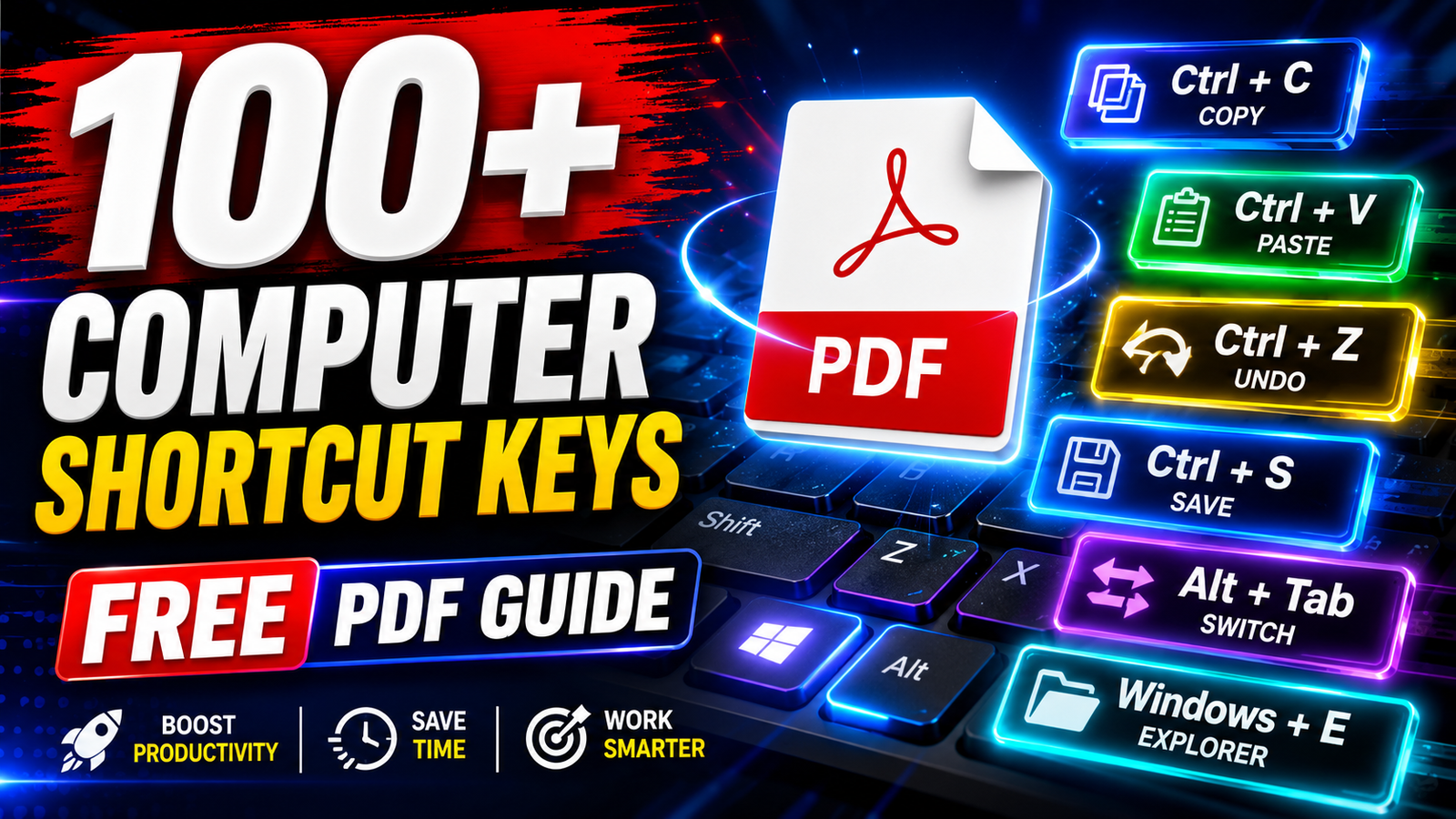
Shortcut keys are combinations of one or more keys that execute commands directly. Instead of opening menus and searching for options, users can press specific key combinations to perform tasks instantly. For example, pressing Ctrl + C copies selected text, while Ctrl + V pastes it elsewhere.
Most operating systems and software applications include hundreds of shortcuts designed to streamline tasks. These shortcuts cover editing documents, managing files, navigating web browsers, controlling applications, and even accessing system settings. The beauty of shortcut keys lies in their simplicity. Once learned, they eliminate unnecessary movement and reduce the number of steps required to complete tasks.
Why Shortcut Keys Matter in Daily Computing
Every second saved during routine operations contributes to improved productivity. Research on workplace efficiency consistently shows that keyboard-centric workflows can outperform mouse-dependent workflows by a significant margin. Imagine opening dozens of files, editing reports, switching between applications, and managing emails throughout the day. Replacing repetitive mouse actions with shortcuts can save several minutes each hour.
Shortcut keys also reduce physical strain. Continuous mouse usage may contribute to wrist fatigue, while keyboard shortcuts distribute movement more evenly. For professionals who spend long hours at computers, this ergonomic advantage can be valuable.
Benefits of Using Keyboard Shortcuts
Improving Productivity and Speed
Productivity is perhaps the most compelling reason to learn shortcuts. Tasks that normally require multiple clicks can often be completed with a single key combination. Editing large documents becomes smoother, file management becomes faster, and multitasking becomes more efficient.
Consider a writer editing a lengthy article. Instead of constantly reaching for formatting menus, shortcuts allow instant copying, pasting, selecting, saving, and searching. The cumulative effect of these small efficiencies can be substantial over time.
Reducing Dependence on the Mouse
The mouse is an excellent tool, but relying on it exclusively can slow workflow. Moving a cursor across the screen repeatedly takes time. Keyboard shortcuts eliminate unnecessary cursor travel and help users maintain focus on their work.
Professionals such as programmers, data analysts, and writers frequently adopt keyboard-first workflows because they allow uninterrupted concentration. Fewer interruptions often translate into higher-quality work and improved productivity.
Essential Windows Shortcut Keys
Common Windows Shortcuts
The following shortcuts are among the most widely used in Windows environments:
| Shortcut Key | Function |
|---|---|
| Ctrl + C | Copy |
| Ctrl + X | Cut |
| Ctrl + V | Paste |
| Ctrl + Z | Undo |
| Ctrl + Y | Redo |
| Ctrl + A | Select All |
| Ctrl + S | Save |
| Ctrl + P | |
| Ctrl + F | Find |
| Alt + Tab | Switch Applications |
These commands form the foundation of efficient computer usage. Learning them first provides immediate productivity improvements.
File and Folder Management Shortcuts
Managing files efficiently is essential in both personal and professional environments. Windows provides several useful shortcuts for this purpose.
| Shortcut Key | Function |
|---|---|
| Windows + E | Open File Explorer |
| F2 | Rename Selected Item |
| Delete | Move to Recycle Bin |
| Shift + Delete | Permanent Delete |
| Ctrl + N | New Window |
| Ctrl + Shift + N | New Folder |
| Alt + Enter | Properties |
| Windows + D | Show Desktop |
Using these shortcuts regularly can simplify file organization and improve workflow efficiency.
Microsoft Word Shortcut Keys
Text Editing and Formatting Shortcuts
Microsoft Word remains one of the most widely used word processors worldwide. Shortcut keys can significantly enhance document creation and editing.
| Shortcut Key | Function |
|---|---|
| Ctrl + B | Bold |
| Ctrl + I | Italic |
| Ctrl + U | Underline |
| Ctrl + L | Align Left |
| Ctrl + E | Center Align |
| Ctrl + R | Align Right |
| Ctrl + J | Justify |
| Ctrl + K | Insert Hyperlink |
These shortcuts are especially valuable for students, writers, editors, and office professionals.
Document Navigation Shortcuts
Large documents often require quick navigation. Word offers numerous shortcuts that help users move through content efficiently.
| Shortcut Key | Function |
|---|---|
| Ctrl + Home | Beginning of Document |
| Ctrl + End | End of Document |
| Ctrl + Left Arrow | Previous Word |
| Ctrl + Right Arrow | Next Word |
| Ctrl + Page Up | Previous Page |
| Ctrl + Page Down | Next Page |
Excel Shortcut Keys for Faster Work
Data Entry and Selection Shortcuts
Microsoft Excel users often work with large datasets where speed matters greatly.
| Shortcut Key | Function |
|---|---|
| Ctrl + Arrow Keys | Move to Data Edge |
| Ctrl + Space | Select Column |
| Shift + Space | Select Row |
| Ctrl + Shift + Plus | Insert Cells |
| Ctrl + Minus | Delete Cells |
These commands can dramatically reduce time spent navigating spreadsheets.
Formula and Worksheet Management Shortcuts
Excel power users depend heavily on shortcuts when handling formulas and worksheets.
| Shortcut Key | Function |
|---|---|
| F2 | Edit Cell |
| Alt + = | AutoSum |
| Ctrl + ` | Show Formulas |
| Ctrl + Page Up | Previous Worksheet |
| Ctrl + Page Down | Next Worksheet |
Internet Browser Shortcut Keys
Navigation Shortcuts
Modern web browsing becomes much easier with keyboard shortcuts.
| Shortcut Key | Function |
|---|---|
| Alt + Left Arrow | Back |
| Alt + Right Arrow | Forward |
| F5 | Refresh |
| Ctrl + L | Address Bar |
| Ctrl + D | Bookmark Page |
Tab and Window Management Shortcuts
Managing multiple tabs efficiently is essential for productivity.
| Shortcut Key | Function |
|---|---|
| Ctrl + T | New Tab |
| Ctrl + W | Close Tab |
| Ctrl + Shift + T | Reopen Closed Tab |
| Ctrl + Tab | Next Tab |
| Ctrl + Shift + Tab | Previous Tab |
| Ctrl + N | New Window |
Advanced Computer Shortcut Keys
System and Task Management Shortcuts
Advanced users often rely on system-level shortcuts to control applications and troubleshoot issues.
| Shortcut Key | Function |
|---|---|
| Ctrl + Shift + Esc | Open Task Manager |
| Windows + R | Run Dialog |
| Windows + I | Settings |
| Windows + L | Lock Computer |
| Windows + X | Power User Menu |
Screenshot and Accessibility Shortcuts
Screenshots and accessibility tools are increasingly important in modern workflows.
| Shortcut Key | Function |
|---|---|
| PrtScn | Capture Screen |
| Windows + Shift + S | Snipping Tool |
| Windows + Plus (+) | Magnifier Zoom In |
| Windows + Minus (-) | Magnifier Zoom Out |
| Windows + Ctrl + Enter | Narrator |
Printable Computer Shortcut Keys PDF Table
Most Frequently Used Shortcut Keys List
| Shortcut | Action |
|---|---|
| Ctrl + C | Copy |
| Ctrl + V | Paste |
| Ctrl + X | Cut |
| Ctrl + Z | Undo |
| Ctrl + S | Save |
| Ctrl + P | |
| Ctrl + A | Select All |
| Alt + Tab | Switch Apps |
| Windows + E | File Explorer |
| Windows + D | Desktop |
| Ctrl + T | New Tab |
| Ctrl + W | Close Tab |
| Ctrl + F | Find |
| Ctrl + B | Bold |
| Ctrl + Shift + Esc | Task Manager |
This table can be copied into a document and exported as a PDF for quick reference and printing.
Tips for Memorizing Shortcut Keys
Practical Learning Techniques
Learning dozens of shortcuts may seem overwhelming at first, but the process becomes much easier when approached systematically. Start with five to ten shortcuts that you use most frequently. Practice them daily until they become automatic. Once those commands feel natural, add new shortcuts gradually.
Creating a printed cheat sheet near your workstation can reinforce memory. Associating shortcuts with their functions also helps. For example, Ctrl + S stands for Save, Ctrl + P for Print, and Ctrl + F for Find. These logical associations make recall easier.
Consistent usage is the key to mastery. Reading about shortcuts alone is not enough. Actively replacing mouse actions with keyboard commands strengthens muscle memory and accelerates learning. Within a few weeks, many shortcuts will become second nature.
Conclusion
Keyboard shortcuts are among the most powerful yet underutilized tools available to computer users. They improve productivity, reduce repetitive movements, streamline workflows, and help users complete tasks more efficiently. Whether you’re working in Windows, Microsoft Office, Excel, web browsers, or other applications, mastering shortcut keys can transform your daily computing experience.
A printable Computer Shortcut Keys PDF Guide serves as a valuable reference for students, professionals, educators, and anyone looking to work smarter. By practicing the shortcuts listed in this guide regularly, you can save time, increase efficiency, and become a more confident computer user.
FAQs
1. What is the most commonly used computer shortcut key?
The most commonly used shortcuts are Ctrl + C, Ctrl + V, Ctrl + X, Ctrl + Z, and Ctrl + S.
2. How can I create a PDF version of this guide?
Copy the content into Microsoft Word or Google Docs and choose Save as PDF or Download as PDF.
3. Are shortcut keys the same on all computers?
Many shortcuts are universal, but some vary between Windows, macOS, and Linux systems.
4. How long does it take to learn shortcut keys?
Most users can master essential shortcuts within a few weeks of consistent practice.
5. Which shortcut opens Task Manager directly?
Press Ctrl + Shift + Esc to open Task Manager instantly.