

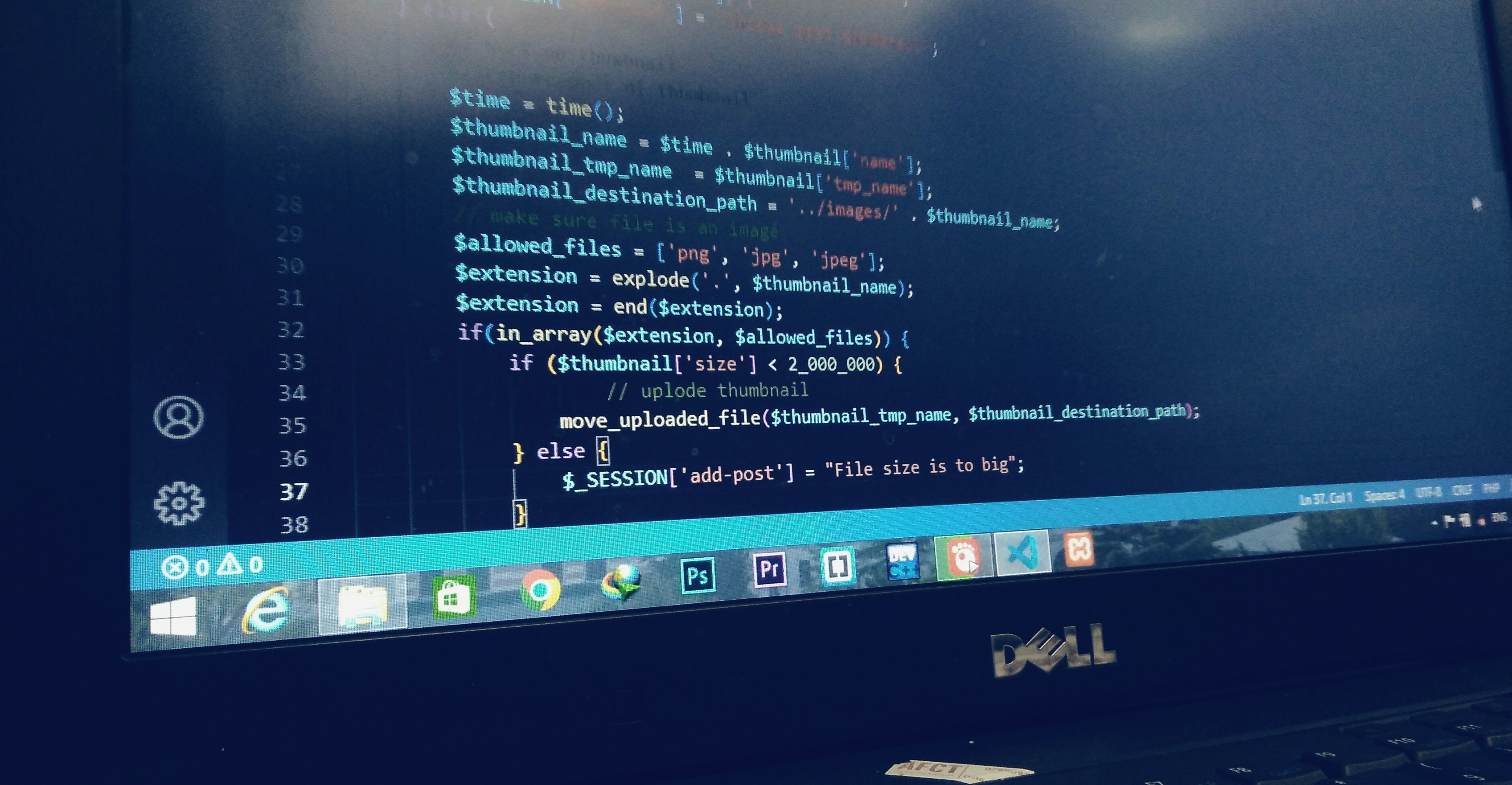
Introduction to Uploading Media in WordPress
Whether you’re a novice or an experienced user, understanding how to upload a media file in WordPress is essential for enhancing your content. WordPress offers a simplified process that allows you to add images, videos, and other media efficiently. This guide will walk you through the steps involved in uploading your files.
Step-by-Step Instructions
1. Log into your WordPress dashboard. Once there, navigate to the left sidebar and select ‘Media’. Click on ‘Add New’. This will take you to the media upload interface.
2. You will find a drag-and-drop area for your files. Simply drag your media file into this area, or you can click on the ‘Select Files’ button. This will open a file explorer window from which you can select the media you wish to upload.
3. After selecting your media file, it will begin uploading automatically. Once completed, you will see your media file listed in the Media Library. Here, you can edit details such as title, caption, and description to better optimize your content.
Tips for Successful Uploads
To ensure a smooth uploading experience, consider the following tips. First, make sure your media files are in supported formats (like JPEG, PNG, GIF, or MP4). Secondly, pay attention to the file size; larger files can slow down your website. If needed, use an image compression tool before uploading.
In conclusion, learning how to upload a media file in WordPress is straightforward. By following these steps, you can enrich your content and engage your audience effectively.