
How to Install a Plugin in WordPress
Understanding WordPress Plugins
WordPress plugins are essential tools that enhance and extend the functionality of a WordPress website. Essentially, they are packages of code that can be added to a WordPress site to introduce new features or improve existing functionalities without requiring deep technical knowledge or programming skills. Plugins can vary widely in their scope and purpose, ranging from simple visual enhancements to complex administrative tools that can help with SEO, performance optimization, and security.
The primary purpose of using plugins in WordPress is to enable users to customize their websites according to their specific needs and preferences. By leveraging these tools, website owners can effectively manage their content, engage with their audience, and optimize their sites for better performance. For example, a popular plugin like Yoast SEO assists users in optimizing their content for search engines, while WooCommerce transforms a standard website into a fully functional online store.
There are thousands of WordPress plugins available in the official WordPress Plugin Directory, catering to various requirements. Some of the different types of plugins include:
- SEO plugins: Enhance visibility in search engines and improve site ranking.
- Security plugins: Protect the site against vulnerabilities and attacks.
- Backup plugins: Enable easy backups and restoration of site data.
- Performance optimization plugins: Improve loading speeds and overall site performance.
Incorporating plugins into a WordPress site can significantly streamline web development and maintenance processes. Users should carefully consider utilizing plugins, as they not only improve usability but also contribute to the overall functionality of the site by making it more dynamic and user-friendly.
Preparing for Plugin Installation
Before proceeding with the installation of a plugin in WordPress, several preparatory steps are essential to ensure a smooth and successful process. First and foremost, checking the compatibility of the plugin with your current WordPress version is crucial. Each plugin typically specifies the versions it supports, and using an incompatible version can lead to malfunctions or site crashes. Verifying this compatibility will help avoid unnecessary complications.
Next, performing a comprehensive backup of your website is a critical safety measure. This can include both the database and the files associated with your WordPress installation. In the event that the newly installed plugin causes issues, having a backup allows for a swift recovery to the previous functional state. Various plugins and tools are available to facilitate easy backups, ensuring that your data and configurations remain intact.
It is also imperative to consider the source from which you are acquiring the plugin. Plugins should always be downloaded from reputable sources, such as the official WordPress Plugin Directory or verified developers’ websites. Doing so helps mitigate the risks associated with malware and ensures the plugin’s code is regularly updated and maintained. Additionally, researching the plugin’s ratings, reviews, and number of active installations can provide insights into its credibility and reliability within the WordPress community.
By taking these preparatory steps—checking the compatibility of the plugin with your WordPress version, ensuring you have a full backup, and verifying the source of the plugin—you set the stage for a successful installation process. Remaining vigilant during these early stages protects both your site’s functionality and its security, ultimately leading to a better experience as you enhance your site with new features through plugins.
Step-by-Step Guide to Installing Plugins
Installing a plugin in WordPress is a straightforward process that enhances the functionality of your website. Below is a detailed guide on how to effectively install plugins through the WordPress dashboard.
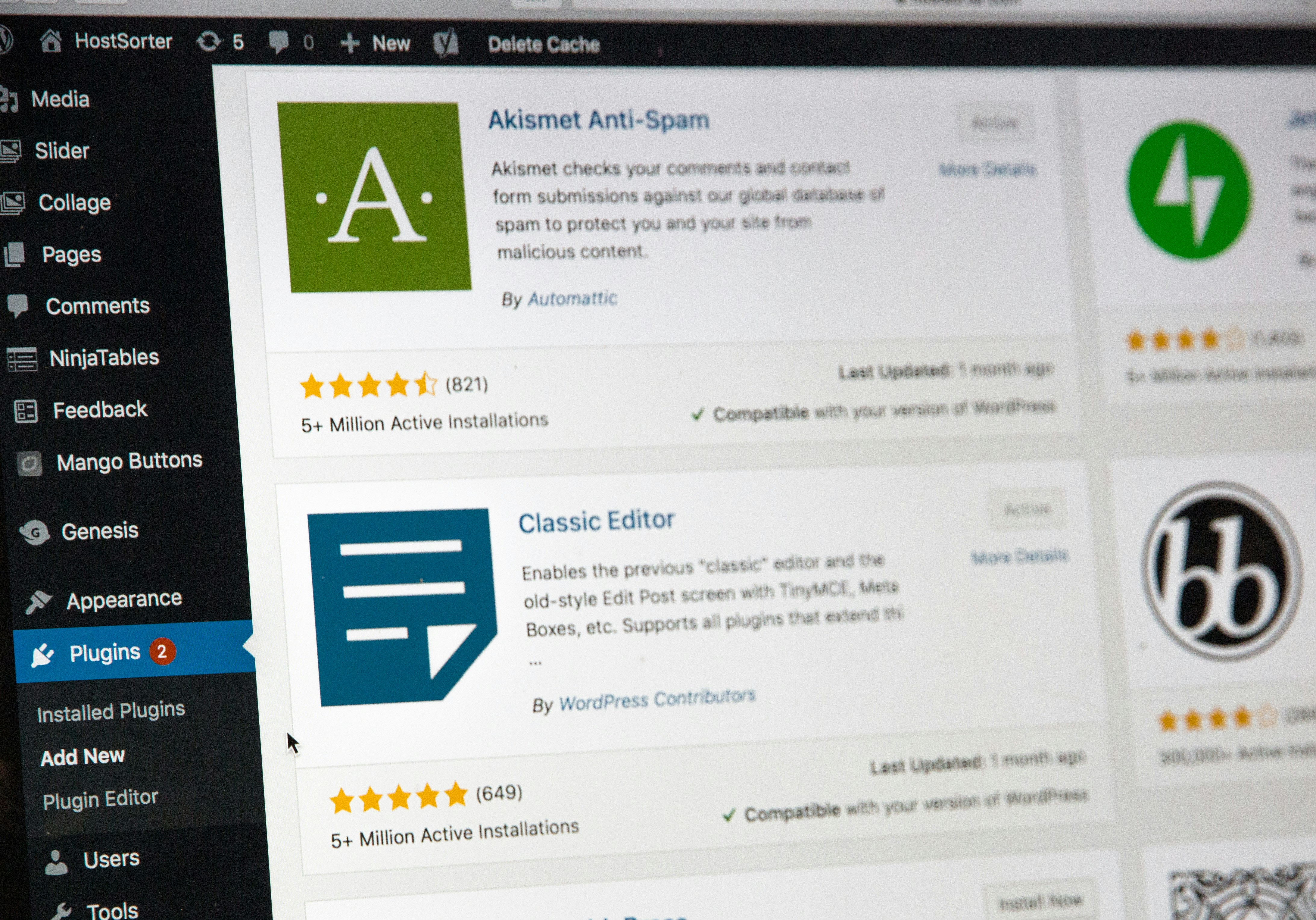
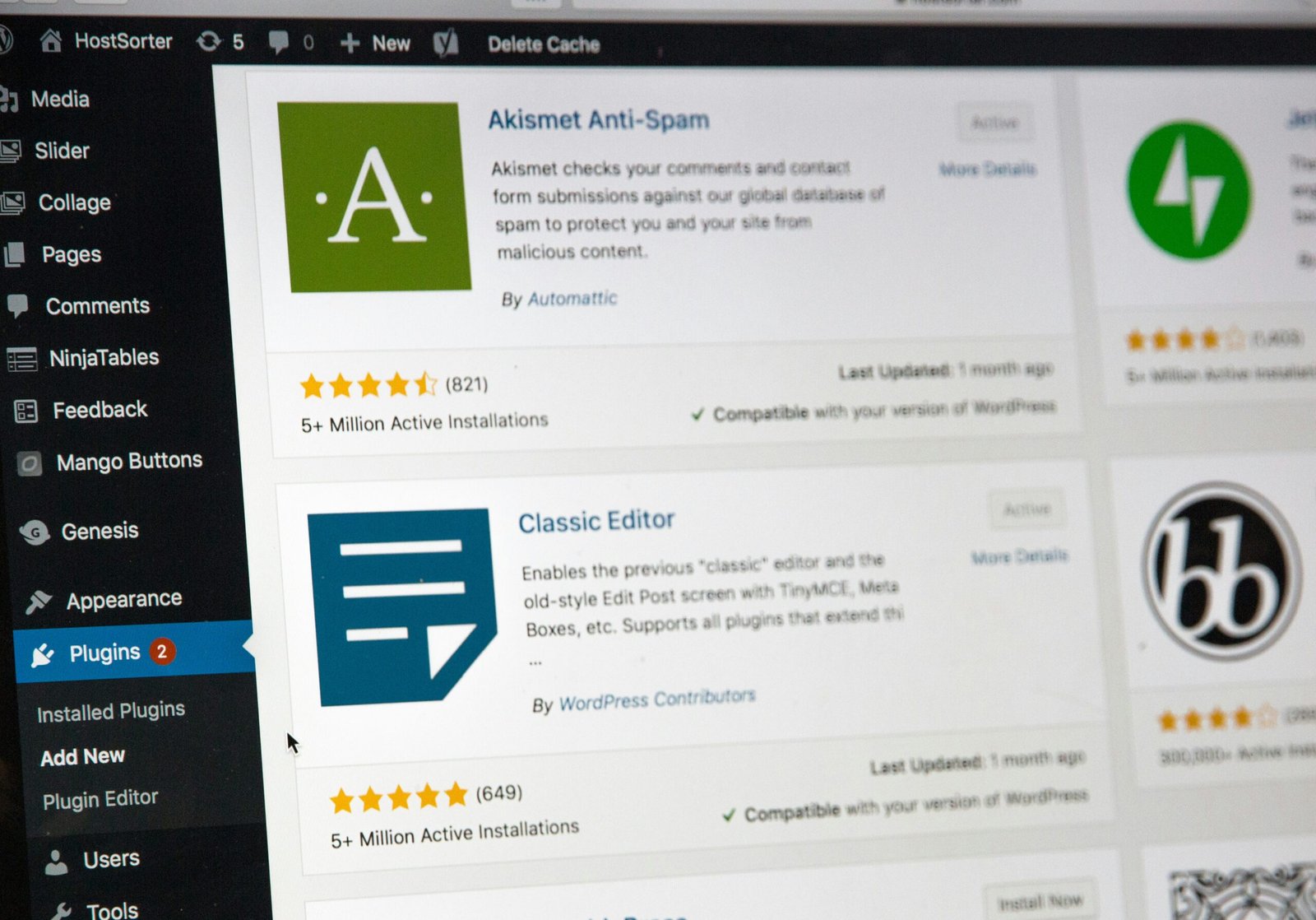
First, log in to your WordPress admin panel. Once you are logged in, navigate to the left sidebar and select Plugins, then choose Add New. This action will direct you to the WordPress plugin repository, where you can browse through a variety of plugins.
In the repository, you can either search for a specific plugin using the search bar or browse through the featured, popular, or recommended plugins. When you find a desired plugin, click the Install Now button adjacent to it. WordPress will automatically download and install the plugin.
Once the installation is complete, the button will change to Activate. Click this button to enable the plugin on your site. You will typically see a confirmation message once the plugin has been activated successfully.
Sometimes, users may want to install a plugin from an external source. In such cases, ensure you have the plugin zip file ready. To upload this manually, go back to the Plugins page, then select Add New. At the top of the page, there is an option marked Upload Plugin. Click on it and then upload the zip file from your computer. Once uploaded, click Install Now and then activate the plugin afterward.
This process aids in adding new features to your WordPress site seamlessly, and understanding how to install plugins effectively will allow you to customize your website according to your specific needs.
Post-Installation: Configuring and Managing Plugins
Once a plugin is successfully installed in WordPress, the next critical step involves configuring its settings to ensure optimal functionality. This process typically begins in the WordPress dashboard, where the installed plugin can be accessed through the “Plugins” menu. Most plugins will add a new submenu under this category or a specific settings page where users can customize the features according to their needs.
Common settings that may require adjustment include user permissions, display options, and integration with other tools or services. For instance, if the plugin is related to SEO, you might need to specify focus keywords or choose how the plugin interacts with existing content on your site. On the other hand, for a plugin that enhances website security, you may want to set thresholds for specific alerts or configurations to safeguard your site effectively.
Managing plugins is equally critical. Users should regularly check for updates as developers often release patches that fix bugs or enhance functionality. To update a plugin, simply navigate to the “Plugins” section, find the plugin requiring an update, and click the corresponding update link. Additionally, if you encounter a plugin that causes conflicts or negatively impacts your site’s performance, it’s important to know how to deactivate or delete it. To do this, you can simply click the “Deactivate” button next to the plugin in the plugins list. Once deactivated, you have the option to permanently remove the plugin by clicking “Delete.”
If issues arise during usage, troubleshooting becomes essential. Common strategies include checking for conflicts with other plugins by disabling them temporarily or reverting to a previous version of the plugin if updates lead to unexpected issues. Utilizing support forums or the plugin’s documentation can also provide valuable guidance when addressing specific problems.
| All Courses | View List | Enroll Now |
| Mock Tests/Quizzes | View All |
| Student Registration | Register Now |
| Become an Instructor | Apply Now |
| Dashboard | Click Here |
| Student Zone | Click Here |
| Our Team | Meet the Members |
| Contact Us | Get in Touch |
| About Us | Read More |
| Knowledge Base | Click Here |
| Classes/Batches: Class 6th to 12th, BA, B.Sc, B.Com (All Subjects) — Online & Offline Available | Click Here |
| Exam Preparation: SSC, Railway, Police, Banking, TET, UPTET, CTET, and More | Click Here |
| Shree Narayan Computers & Education Center | Home Page |