
Microsoft Word
Introduction to Microsoft Word
Let’s be honest—if you’ve ever typed a school assignment, drafted a resume, written a report, or even created a simple letter, chances are you’ve used Microsoft Word. It’s almost like the default setting for “writing on a computer.” But have you ever stopped to think about why it’s so widely used? What makes it the go-to word processor for students, businesses, authors, and professionals around the globe?
Microsoft Word isn’t just a typing tool. It’s a powerful document creation platform packed with features that most people barely scratch the surface of. From formatting and templates to collaboration tools and cloud integration, Word has evolved into something much bigger than a digital notebook.
In this guide, we’re going deep. Whether you’re a beginner trying to understand the basics or someone who’s used Word for years but wants to level up, you’ll find practical insights here. Think of this as your complete roadmap to mastering Microsoft Word—without the technical jargon or overwhelming complexity.
By the end, you won’t just “use” Word. You’ll control it.
What Is Microsoft Word?
At its core, Microsoft Word is a word processing software developed by Microsoft. That sounds simple enough, right? But that description barely does it justice.
Microsoft Word allows users to create, edit, format, and share text-based documents. These documents can range from simple one-page letters to hundreds-of-pages-long books complete with tables of contents, images, citations, and indexes. Word supports advanced formatting, collaboration, design tools, and integration with other Microsoft Office applications like Excel and PowerPoint.
What makes Word stand out is its balance between simplicity and power. On the surface, you can open a blank document and start typing immediately—no learning curve required. But beneath that simplicity lies an ecosystem of tools:
- Advanced formatting controls
- Built-in templates
- Grammar and spelling check
- Mail merge functionality
- Macros and automation
- Real-time collaboration
- Cloud storage integration
In other words, Word grows with you. A student can use it for essays. A lawyer can draft contracts. A marketer can design branded proposals. An author can write an entire novel.
It’s like a Swiss Army knife for writing—compact on the outside, incredibly versatile on the inside.
Why Microsoft Word Remains a Global Standard
You might wonder: with so many alternatives like Google Docs, Apple Pages, and LibreOffice, why does Microsoft Word still dominate?
The answer lies in three key factors: compatibility, functionality, and trust.
First, compatibility. Word’s .doc and .docx formats are universally recognized. When someone sends a document, chances are it’s a Word file. Businesses, universities, government institutions—most rely on Word as their standard. That universal acceptance makes it the safest choice when sharing professional documents.
Second, functionality. While other word processors offer basic features, Word goes deeper. Advanced formatting options, complex layout controls, mail merge, citation management, and macro automation give users far more control over their documents. If you need precision, Word delivers.
Third, trust and longevity. Microsoft has been refining Word since 1983. Decades of development have built a platform that feels reliable. Updates continuously improve security, usability, and collaboration features, especially with Microsoft 365 integration.
And let’s not ignore habit. Many of us learned Word in school. That familiarity creates comfort. When deadlines are tight, people choose tools they trust.
In a world full of new apps and shiny alternatives, Microsoft Word remains the steady, dependable backbone of digital writing.
The Evolution of Microsoft Word
Software doesn’t stay relevant for over 40 years by standing still. Microsoft Word’s journey from a simple text editor to a sophisticated document powerhouse is nothing short of remarkable.
When it first launched in 1983, Word was designed for MS-DOS systems. It wasn’t flashy. It wasn’t particularly user-friendly by today’s standards. But it introduced the revolutionary concept of WYSIWYG—“What You See Is What You Get.” For the first time, users could see formatting on screen that closely resembled the printed result.
As Windows grew, so did Word. The 1990s brought graphical interfaces, toolbars, and formatting icons. By the early 2000s, Word became a staple in offices worldwide.
Then came one of the biggest design shifts: the Ribbon interface introduced in Word 2007. At first, users resisted. It looked different. It felt unfamiliar. But over time, the Ribbon proved more intuitive, organizing features into logical tabs instead of buried menu lists.
Today, Word exists as part of Microsoft 365, offering cloud-based access, real-time collaboration, and automatic updates. You can use it on desktops, laptops, tablets, and even smartphones.
The evolution of Word mirrors the evolution of work itself—from paper-focused tasks to cloud-powered collaboration.
And it’s still evolving.
From 1983 to Today: A Quick History
When Microsoft Word debuted in 1983 under the name “Multi-Tool Word,” few could have predicted its global impact. It was competing in a crowded market of early word processors. Yet it slowly gained traction thanks to its user-friendly interface compared to command-based alternatives.
In 1989, Word for Windows launched, aligning perfectly with the rise of Microsoft Windows. That strategic timing helped cement its dominance. By the mid-1990s, Word had become part of the Microsoft Office suite, bundled with Excel and PowerPoint. That integration created an ecosystem businesses loved.
The 2007 update was another turning point. The introduction of the Ribbon replaced traditional drop-down menus. It reorganized commands visually, making features easier to discover. Though controversial at first, it ultimately improved usability.
Fast forward to today, and Word is no longer just desktop software. Through Microsoft 365, documents are saved to OneDrive, shared instantly, and edited collaboratively in real time. AI-powered features like Editor and Copilot assist with grammar, clarity, and even content suggestions.
From floppy disks to cloud computing, Word’s journey reflects decades of technological transformation.
And somehow, it’s still the same familiar blue “W.”
Major Milestones and Updates
Microsoft Word didn’t just survive for decades—it reinvented itself repeatedly. That’s the real secret behind its staying power. Every major update wasn’t just cosmetic; it changed how people worked.
One of the earliest milestones was the introduction of WYSIWYG editing. Before that, formatting required memorizing commands. Suddenly, users could see bold text, italics, margins, and spacing exactly as they would appear when printed. It felt revolutionary—almost magical at the time.
Then came Word 97, which introduced VBA (Visual Basic for Applications). This allowed users to create macros and automate repetitive tasks. For businesses handling hundreds of documents, this was a game-changer. Imagine generating invoices, contracts, or reports with just a click.
In 2007, Microsoft rolled out the Ribbon interface. Instead of digging through endless dropdown menus, users could see grouped commands organized into tabs like Home, Insert, and Layout. It reduced clutter and improved workflow efficiency. While many resisted at first, it eventually became the standard design across Microsoft Office products.
Later updates focused heavily on collaboration. With Microsoft 365 integration, documents moved to the cloud. Multiple users could edit the same file simultaneously. Comments, version history, and real-time updates transformed Word from a solo writing tool into a team collaboration platform.
Recent updates introduced AI-powered features like Microsoft Editor, which goes beyond spelling and grammar to suggest clarity improvements, tone adjustments, and style enhancements.
Each milestone made Word more intuitive, more powerful, and more aligned with modern work habits. It didn’t just adapt to change—it anticipated it.
Word in the Era of Microsoft 365
We live in a cloud-first world. Files aren’t trapped on a single computer anymore—they travel with us. Microsoft Word embraced this shift fully through Microsoft 365.
With Microsoft 365, Word isn’t just software installed on your PC. It’s an interconnected ecosystem. Documents are saved automatically to OneDrive, meaning you can start writing on your laptop, edit on your tablet, and review on your phone without emailing files to yourself.
One of the most powerful features today is real-time collaboration. You can see other people typing as they work. Comments appear instantly. Edits are tracked automatically. It feels less like passing papers around and more like sitting together at the same digital desk.
Version history is another underrated lifesaver. Ever accidentally deleted an entire section? With version history, you can roll back to a previous draft in seconds. No panic. No lost work.
AI integration has also stepped into the spotlight. Word now suggests improvements for clarity, conciseness, and tone. It checks inclusivity in language and even offers rewriting suggestions.
In short, Word has shifted from being a standalone word processor to becoming a smart, connected productivity hub. It’s no longer just about writing—it’s about working smarter.
Understanding the Microsoft Word Interface
At first glance, Microsoft Word might look overwhelming. So many buttons. So many tabs. So many options. But once you understand the layout, everything starts to feel logical.
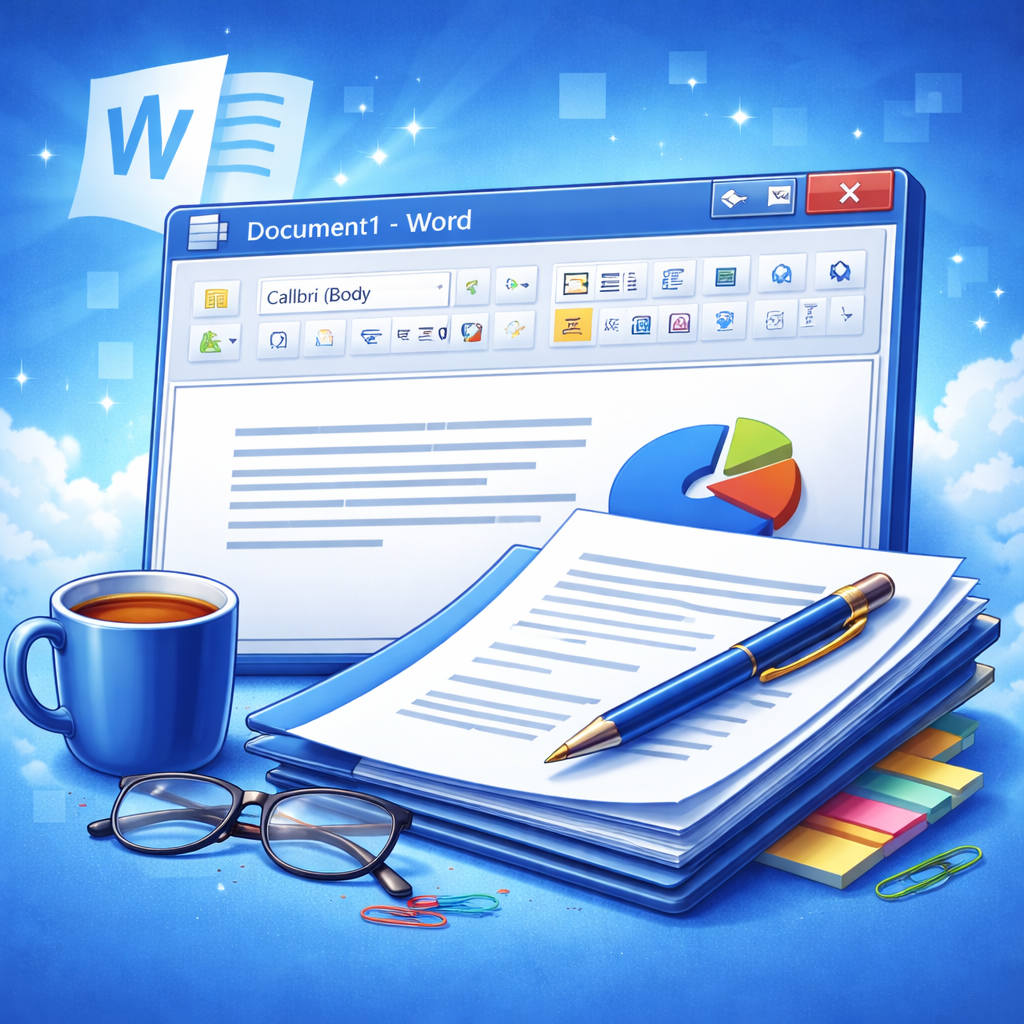
The top portion of Word is dominated by the Ribbon, which organizes tools into categories. Instead of hiding features behind complicated menus, Word groups them into tabs like Home, Insert, Design, Layout, References, Mailings, Review, and View.
Each tab contains related tools. The Home tab focuses on text formatting. Insert allows you to add images, tables, and shapes. Layout controls margins and spacing. Review helps with comments and spelling checks.
Below the Ribbon sits the document workspace—your blank canvas. This is where your words live. Around it, you’ll find rulers, scroll bars, and status indicators showing page numbers and word count.
On the top-left corner, there’s the Quick Access Toolbar, where you can pin frequently used commands like Save, Undo, and Redo. It’s small, but incredibly useful.
Understanding the interface is like learning the dashboard of a car. At first, it’s intimidating. But once you know what each control does, you drive smoothly.
And the best part? You don’t need to memorize everything. Just knowing where things live is enough to boost your confidence.
The Ribbon and Tabs Explained
The Ribbon is the heart of Microsoft Word’s interface. It organizes commands visually, reducing the need to hunt through menus.
Let’s break it down.
Home Tab
This is where you’ll spend most of your time. It contains essential formatting tools:
- Font type and size
- Bold, italic, underline
- Text color and highlighting
- Paragraph alignment
- Line spacing
- Bullets and numbering
If Word were a house, the Home tab would be the living room—where most of the action happens.
Insert Tab
Need to add something beyond plain text? This is your toolbox.
You can insert:
- Tables
- Pictures
- Shapes
- Icons
- Charts
- Page numbers
- Headers and footers
Think of it as decorating your document.
Layout and Design Tabs
These tabs control the overall structure and appearance of your document. Margins, orientation (portrait or landscape), spacing, themes, and watermarks all live here.
If the Home tab handles the words, Layout and Design handle the stage they stand on.
Once you understand these tabs, Word stops feeling cluttered and starts feeling powerful.
Quick Access Toolbar and Customization
The Quick Access Toolbar is small but mighty. Located in the top-left corner, it typically includes Save, Undo, and Redo. But here’s the secret— you can customize it.
Right-click any command in the Ribbon and select “Add to Quick Access Toolbar.” Suddenly, your most-used features are one click away.
Do you frequently use Track Changes? Add it. Prefer quick access to Print Preview? Pin it. Want a shortcut to Format Painter? It’s yours.
Customization turns Word from a generic tool into a personalized workspace.
You can also customize the Ribbon itself. Hide tabs you never use. Create new groups. Rearrange commands.
Why waste time clicking through multiple tabs when you can streamline your workflow?
Efficiency isn’t about working harder. It’s about removing friction. And customization does exactly that.
Backstage View (File Menu)
Click the “File” tab, and you enter what Microsoft calls the Backstage View. This is where document management happens.
Here, you can:
- Save and Save As
- Open recent files
- Print documents
- Share files
- Export as PDF
- Protect documents
- Check document properties
Think of Backstage View as the control center behind the curtain. While the main interface focuses on writing and formatting, this area handles logistics.
Exporting to PDF is particularly useful. Instead of relying on third-party tools, Word allows you to convert documents directly. That ensures formatting stays intact.
You can also inspect documents for hidden properties or personal information before sharing—crucial for professional environments.
Backstage View may not be glamorous, but it’s essential. It’s where your document goes from draft to deliverable.
Creating and Formatting Documents
Starting a document in Microsoft Word is simple. Open the program, click “New,” and choose a blank document or a template. But what happens next separates amateurs from pros.
Formatting is what makes a document readable and professional. A wall of unformatted text? Hard to read. Structured headings, consistent fonts, proper spacing? That’s clarity.
Begin with clear headings. Use built-in Styles instead of manually changing font sizes. Adjust line spacing for readability—1.15 or 1.5 spacing often works best for reports.
Margins matter more than people think. Standard margins (1 inch on all sides) keep documents balanced. But creative layouts may require adjustments.
Here’s a quick formatting checklist:
- Choose a professional font (Calibri, Times New Roman, Arial).
- Keep font size readable (11–12 for body text).
- Use bold sparingly for emphasis.
- Maintain consistent spacing.
- Align text appropriately (left alignment is safest).
Formatting isn’t about making things “look pretty.” It’s about guiding the reader’s eye smoothly through your content.
A well-formatted document feels effortless to read—and that’s the goal.
Text Formatting Essentials
Formatting in Microsoft Word is where your raw thoughts transform into something polished and professional. Think of it like dressing up for an important meeting—you wouldn’t show up in pajamas, right? The same logic applies to your document. The way your text looks directly affects how seriously it’s taken.
At the most basic level, formatting includes font style, font size, color, alignment, spacing, and emphasis tools like bold or italics. But there’s more nuance here than most people realize. Choosing the right font sets the tone. For instance, Times New Roman feels traditional and academic, while Calibri feels modern and clean. Arial is neutral and widely accepted in business settings.
Consistency is everything. Mixing multiple fonts randomly makes a document look chaotic. Instead, stick to one font for body text and perhaps a complementary font for headings. Size matters too. Body text should usually stay between 11 and 12 points for readability, while headings can scale up strategically.
Alignment influences readability. Left alignment is standard for most documents. Justified text can look neat, but it may create uneven spacing. Line spacing—1.15 or 1.5—is ideal for clarity. Double spacing is often required in academic writing.
Don’t overuse bold, italics, or underlining. They’re like seasoning in cooking—too much ruins the flavor. Use them intentionally to highlight key points.
Mastering these basics may sound simple, but they dramatically elevate the professionalism of your work. Small formatting decisions create big impressions.
Fonts, Sizes, and Styles
Fonts are more powerful than people give them credit for. They communicate emotion and purpose before the reader even processes your words. Imagine receiving a business proposal written entirely in Comic Sans. It would feel wrong instantly.
Microsoft Word offers hundreds of fonts, but that doesn’t mean you should use them all. For professional documents, stick with clean, readable fonts like:
- Calibri
- Arial
- Times New Roman
- Cambria
- Garamond
Headings should stand out clearly from body text. Instead of manually increasing font size and bolding each heading, use Word’s built-in Styles feature. Styles maintain consistency throughout your document. If you decide to change your heading format later, updating the style automatically changes every heading at once. That’s efficiency at its best.
Here’s a simple structure many professionals use:
| Element | Font Size | Style |
|---|---|---|
| Title | 18–24 pt | Bold |
| Headings | 14–16 pt | Bold |
| Body Text | 11–12 pt | Regular |
Styles also allow you to generate an automatic Table of Contents later—saving hours of manual formatting.
The key takeaway? Fonts aren’t decoration. They’re communication tools. Choose wisely, stay consistent, and let clarity lead the way.
Paragraph Formatting and Alignment
Paragraph formatting is where your document either breathes—or suffocates. Large, dense text blocks scare readers away. Proper spacing and alignment invite them in.
Start with alignment. For most documents, left alignment is best. It creates a clean vertical edge and natural spacing between words. Justified text can look polished but may introduce awkward gaps. Center alignment works for titles but not for large sections of body text.
Next comes spacing. Line spacing determines how cramped or open your text feels. Single spacing works in tight business reports. 1.15 or 1.5 spacing increases readability significantly. Double spacing is standard for academic submissions.
Paragraph spacing is equally important. Instead of pressing Enter multiple times to create space between paragraphs, adjust spacing settings in the Paragraph menu. This keeps formatting consistent and professional.
Indentation also matters. First-line indents are common in academic writing. In business documents, spacing between paragraphs often replaces indentation.
Lists are powerful formatting tools. Use bullet points for unordered items and numbering for step-by-step instructions. They break information into digestible pieces and make scanning easier.
Good paragraph formatting is invisible. When done right, readers won’t notice it—they’ll just feel that your document is easy to read.
Using Templates for Faster Workflow
Why reinvent the wheel every time you start a document? Templates in Microsoft Word are like blueprints. They give you structure so you can focus on content instead of layout.
Word offers built-in templates for:
- Resumes
- Cover letters
- Reports
- Brochures
- Invoices
- Meeting agendas
- Newsletters
These templates come pre-formatted with professional layouts, consistent fonts, and placeholder text. You simply replace the sample content with your own.
Templates are especially useful for branding. Businesses can create custom templates with logos, brand colors, and predefined styles. This ensures every document maintains a consistent identity.
You can also save your own document as a template. Let’s say you regularly create monthly reports with the same structure. Save it as a template, and next month, you’re already halfway done.
Templates save time, reduce formatting errors, and maintain consistency. They remove the repetitive setup phase and let you focus on what really matters—your message.
Efficiency isn’t about rushing. It’s about eliminating unnecessary steps.
Advanced Formatting Features
Once you master the basics, Microsoft Word opens up a new world of advanced formatting tools. These features separate casual users from power users.
Advanced formatting includes:
- Styles and Themes
- Section breaks
- Columns
- Page breaks
- Advanced layout controls
- Document-wide design settings
For example, section breaks allow different parts of your document to have different layouts. You can switch from portrait to landscape orientation mid-document. That’s perfect for inserting wide tables or charts.
Columns are useful for newsletters or brochures. Instead of manually adjusting spacing, Word automatically formats text into balanced columns.
Themes apply consistent colors, fonts, and effects across your entire document. This is especially useful for presentations or branded materials.
These features may sound complex, but they’re incredibly practical. They allow you to control structure with precision rather than relying on guesswork.
Advanced formatting is like upgrading from driving a basic car to piloting a high-performance machine. Once you understand the controls, you can navigate any document with confidence.
Styles and Themes
Styles are one of the most underutilized features in Microsoft Word. Many users manually format headings without realizing that Styles can automate and standardize everything.
A Style is a predefined combination of font, size, color, and spacing. When applied, it ensures consistency throughout the document. Instead of manually formatting each heading, you apply “Heading 1” or “Heading 2.”
Why does this matter?
Because Word uses Styles to generate automatic:
- Tables of Contents
- Navigation panes
- Document outlines
If you’ve ever struggled to create a Table of Contents manually, you’ll appreciate how much time Styles save.
Themes, on the other hand, control overall design elements like color schemes and default fonts. When you apply a theme, it updates the entire document’s appearance instantly.
Together, Styles and Themes provide structure and visual harmony. They make long documents manageable and professional.
Think of Styles as the skeleton and Themes as the clothing. One provides structure; the other provides personality.
Headers, Footers, and Page Numbers
Headers and footers are like the quiet assistants of your document. They work behind the scenes but provide essential structure.
Headers appear at the top of each page. Footers appear at the bottom. They’re commonly used for:
- Page numbers
- Document titles
- Author names
- Dates
- Company branding
In academic writing, page numbers are mandatory. In business documents, headers may include logos or confidentiality notices.
Word allows different headers and footers for different sections. For example, your title page can have no page number, while the rest of the document does. Section breaks make this possible.
You can also format page numbers creatively—Roman numerals for introductions, standard numbers for main sections.
Headers and footers add polish and organization. They guide readers through long documents and reinforce professionalism.
It’s a small detail—but small details build credibility.
Columns, Sections, and Page Breaks
If you’ve ever tried to manually push text onto the next page by hitting “Enter” twenty times, you’re not alone. Almost everyone has done it at some point. But here’s the truth—that’s like using duct tape to fix a leaking pipe. It works temporarily, but it’s messy and unreliable.
Microsoft Word provides cleaner, smarter tools: columns, sections, and page breaks.
Let’s start with page breaks. Instead of forcing content down the page with empty lines, you can insert a page break. This tells Word, “Start a new page right here,” no matter what edits you make later. It keeps your layout stable even if you add or delete text above it.
Now, let’s talk about sections. Section breaks are incredibly powerful. They allow different parts of your document to have different formatting. Want one page in landscape orientation for a wide table? Insert a section break. Need different headers in different chapters? Section break. They give you control over layout without affecting the entire document.
Then there are columns, perfect for newsletters, brochures, or magazine-style documents. Instead of manually adjusting spacing, Word evenly distributes text into columns automatically.
These tools may seem advanced, but they prevent formatting chaos. They keep your document flexible, clean, and professional—even after multiple edits.
Master these, and you’ll never fight with your layout again.
Working with Images, Tables, and Graphics
Words are powerful. But sometimes, visuals say it faster. Microsoft Word isn’t just about text—it’s a full document design tool.
Adding images, tables, and graphics can transform a dull report into an engaging, reader-friendly document. But there’s a balance. Too many visuals overwhelm. Too few make the document feel dense.
Images can clarify complex ideas. Tables organize data neatly. Charts make trends visible instantly. SmartArt turns bullet points into visual diagrams.
The key is integration. Visual elements should support your message—not distract from it.
Word also allows text wrapping options like:
- Square
- Tight
- Behind Text
- In Front of Text
These options control how text flows around images. Instead of awkward gaps, your content stays smooth and polished.
Professional documents often combine structured text with visual elements strategically. Think of visuals as road signs—they guide readers through information efficiently.
When used wisely, graphics elevate your document from simple writing to compelling communication.
Inserting and Editing Images
Adding an image in Word is simple: click Insert → Pictures. But what happens after insertion is where many people struggle.
Once an image is placed, it behaves like an object within your document. You can resize it by dragging corner handles (always use corners to maintain proportions). Stretching from the sides can distort the image—never a good look.
Next comes text wrapping. By default, images sit “In Line with Text,” meaning they act like large characters. Switching to “Square” or “Tight” allows text to wrap around the image more naturally.
Word also includes image editing tools:
- Crop
- Adjust brightness and contrast
- Apply artistic effects
- Add borders
- Compress images to reduce file size
Compression is especially useful when emailing large documents.
Always ensure your images are high resolution. Blurry visuals reduce credibility instantly.
A good rule of thumb? If an image doesn’t add clarity or value, remove it. Clean, intentional visuals enhance professionalism.
Creating and Formatting Tables
Tables are lifesavers when dealing with structured data. Instead of listing numbers in paragraphs, tables organize information into neat rows and columns.
Creating a table in Word is straightforward: Insert → Table → choose your grid size. From there, you can adjust column width, row height, and alignment.
Formatting matters. Use bold headers to distinguish categories. Apply subtle shading to improve readability. Avoid overcrowding cells with too much text.
Here’s a simple example of how tables enhance clarity:
| Feature | Benefit |
|---|---|
| Styles | Ensures consistency |
| Section Breaks | Allows layout control |
| Templates | Saves time |
| Track Changes | Improves collaboration |
Tables also include design presets. With one click, you can apply professional color schemes and borders.
When presenting data, tables reduce confusion. They make comparison easier and information digestible.
Clean tables equal clear communication.
SmartArt, Charts, and Icons
Sometimes, bullet points aren’t enough. That’s where SmartArt and charts shine.
SmartArt transforms lists into visual diagrams—like process flows, hierarchies, or cycles. For example, instead of writing a step-by-step process in plain text, you can display it as a visual flowchart.
Charts are ideal for data visualization. Word allows you to insert:
- Bar charts
- Line graphs
- Pie charts
- Column charts
Once inserted, you can edit the data directly in an Excel-style sheet. This makes updating numbers simple.
Icons are another underrated feature. Need a visual cue for email, phone, or location? Word provides built-in scalable icons that look professional and modern.
Visual elements improve retention. Readers remember diagrams and charts more than plain text.
When used strategically, these tools make your document not just readable—but memorable.
Collaboration and Sharing
Work today is rarely solo. Whether you’re part of a team, collaborating on a group project, or working with clients, sharing documents is essential.
Microsoft Word makes collaboration seamless.
Through Microsoft 365, multiple users can edit a document simultaneously. You can see cursors moving in real time. Changes appear instantly. No more emailing different versions back and forth labeled “Final_v2_ReallyFinal.”
Word also tracks changes automatically if enabled. This feature highlights insertions, deletions, and formatting adjustments. It’s invaluable when reviewing contracts or academic drafts.
Comments allow team members to provide feedback without altering the main content. You can reply, resolve, or delete comments as needed.
Sharing is simple: click File → Share → enter email addresses or generate a link.
Collaboration features turn Word into a shared workspace rather than just a writing tool.
Teamwork feels smoother when everyone works on the same digital page.
Track Changes and Comments
Track Changes is one of Word’s most powerful tools for editing and reviewing.
When enabled, every modification becomes visible. Added text appears underlined. Deleted text shows with strikethrough formatting. This transparency makes it easy to review edits without losing original content.
You can:
- Accept changes
- Reject changes
- Move between edits quickly
Comments add another layer of communication. Highlight a section, click “New Comment,” and type feedback. Others can reply directly within the document.
This system prevents confusion and maintains accountability. Instead of guessing who changed what, everything is documented.
For legal, academic, and business settings, Track Changes is indispensable.
It keeps collaboration organized—and professional.
Real-Time Collaboration with Microsoft 365
Real-time collaboration feels almost magical. You open a document and see others typing simultaneously. No waiting. No syncing delays.
Each collaborator has a colored cursor. You can instantly identify who is editing which section.
Version history protects your work. If someone accidentally deletes a section, you can restore a previous version within seconds.
Permissions can be adjusted too. Some users can edit. Others can only view or comment.
This flexibility makes Word ideal for remote teams.
Work no longer depends on physical proximity. Whether your team is across the office or across the world, collaboration happens seamlessly.
Microsoft Word has evolved into a cloud-powered teamwork platform.
Productivity Tips and Shortcuts
Time is precious. The faster you navigate Word, the more efficient you become.
Here are essential keyboard shortcuts:
- Ctrl + C → Copy
- Ctrl + V → Paste
- Ctrl + Z → Undo
- Ctrl + B → Bold
- Ctrl + I → Italic
- Ctrl + F → Find
- Ctrl + H → Replace
Learning shortcuts saves minutes daily—which add up to hours monthly.
Use Find and Replace to update repeated words instantly. Adjust document-wide formatting using Styles instead of manual edits.
AutoCorrect fixes common typos automatically. You can even create custom shortcuts. For example, typing “addr” can expand into your full address.
Small productivity habits compound over time.
Efficiency isn’t about rushing. It’s about working smart.
Security and Document Protection
Documents often contain sensitive information. Microsoft Word includes built-in protection tools.
You can:
- Set password protection
- Restrict editing
- Mark documents as final
- Encrypt files
To protect a document, go to File → Info → Protect Document.
Password protection prevents unauthorized access. Restrict Editing limits what others can modify—ideal for forms.
Word also includes document inspection tools that remove hidden metadata before sharing.
Security isn’t optional in professional environments. Protecting your documents protects your credibility.
Microsoft Word for Different Use Cases
Microsoft Word adapts to nearly every writing need.
Academic Writing
Students use Word for essays, research papers, and theses. Citation tools and formatting features simplify complex documents.
Business Documentation
Reports, proposals, contracts, and memos rely on Word’s structured formatting and collaboration tools.
Creative Writing and Publishing
Authors draft novels, scripts, and manuscripts in Word. Long-document navigation tools make managing chapters easier.
Its versatility is what makes Word indispensable.
One tool. Endless possibilities.
| All Courses | View List | Enroll Now |
| Mock Tests/Quizzes | View All |
| Student Registration | Register Now |
| Become an Instructor | Apply Now |
| Dashboard | Click Here |
| Student Zone | Click Here |
| Our Team | Meet the Members |
| Contact Us | Get in Touch |
| About Us | Read More |
| Knowledge Base | Click Here |
| Classes/Batches: Class 6th to 12th, BA, B.Sc, B.Com (All Subjects) — Online & Offline Available | Click Here |
| Exam Preparation: SSC, Railway, Police, Banking, TET, UPTET, CTET, and More | Click Here |
| Shree Narayan Computers & Education Center | Home Page |